How to use Sideline DJ
Every step, on the real screens.
Pick what you want to do. Each guide walks you through the app one tap at a time, with the button to tap lit up.
Guide 1 of 5 · About 5 minutes
Set up your team
Do this once, at home with Wi-Fi. After that, every game is one tap.
-
Get the app and sign up
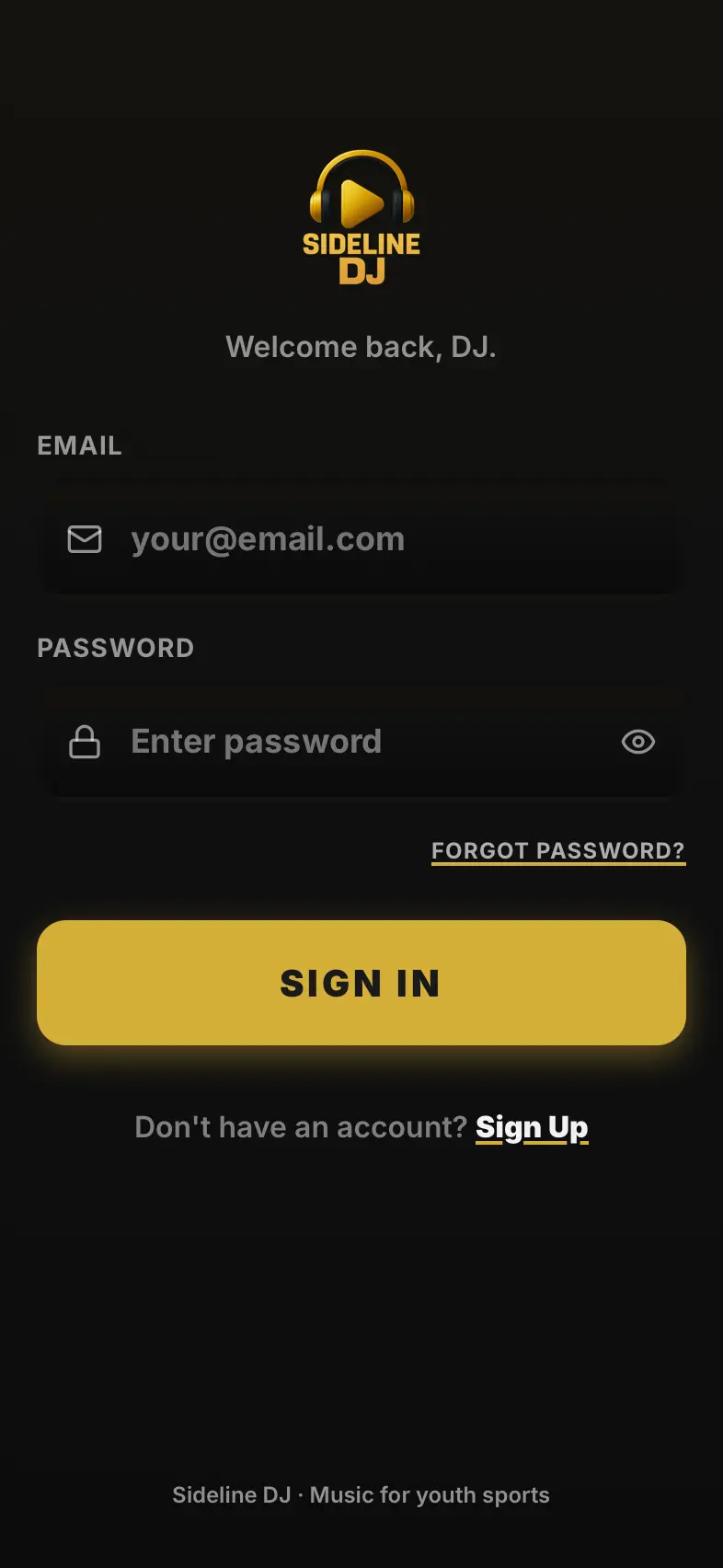
Download Sideline DJ from the App Store on your iPhone or iPad. Tap Sign Up and use your email; a 6-digit code confirms it.
-
Connect Apple Music
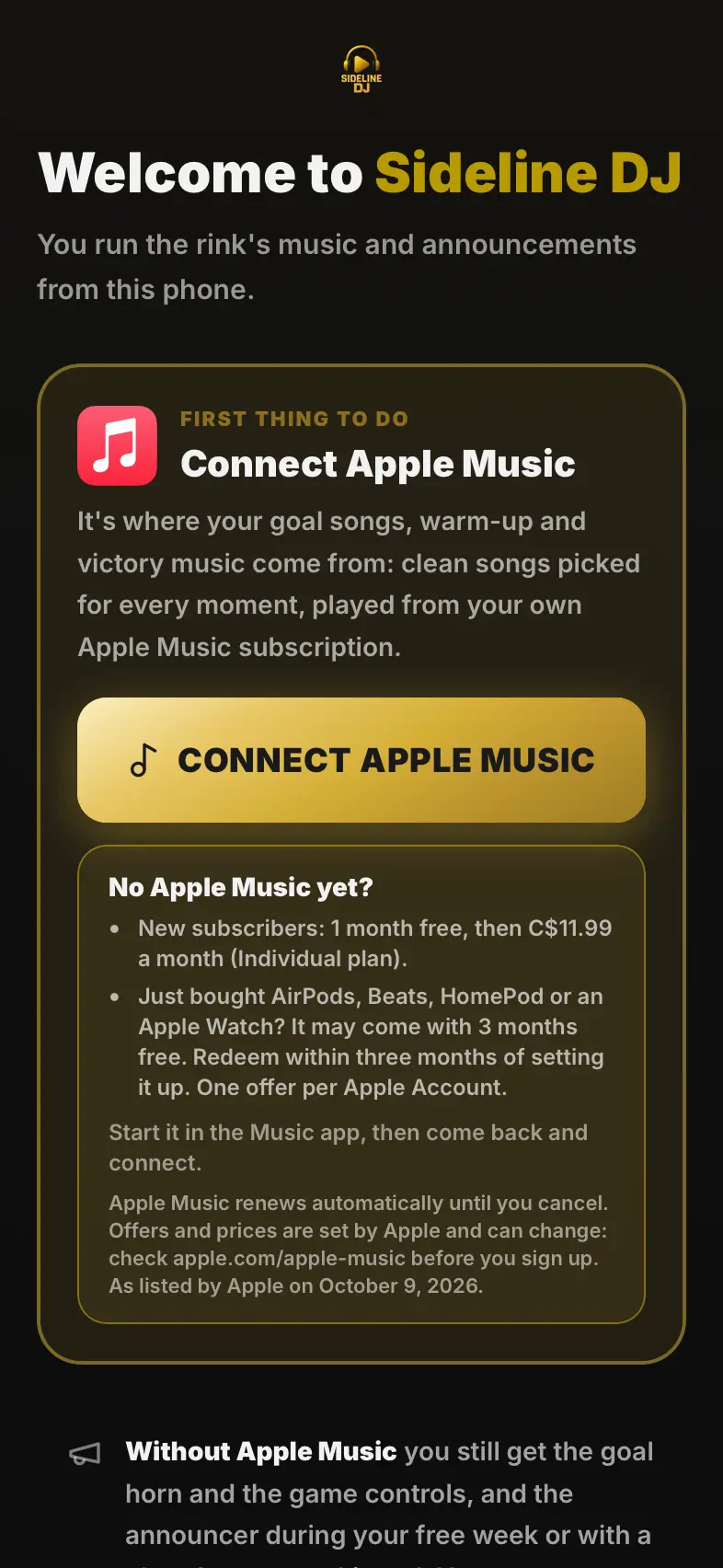
Your goal songs, warm-up and victory music come from your own Apple Music subscription: clean songs, picked for every moment. No Apple Music? Tap Not now. The horn, the buttons and the announcer still work.
-
Create your team
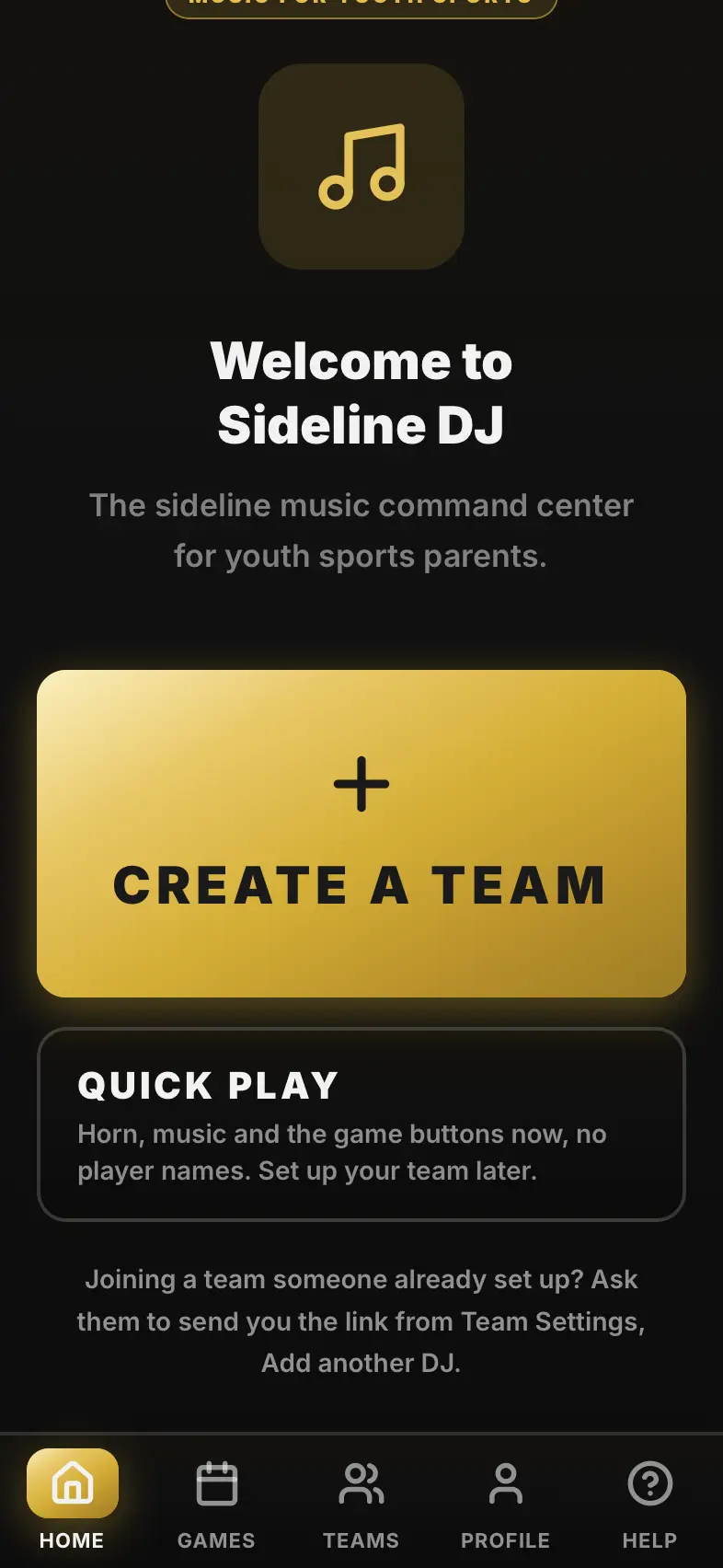
On Home, tap Create a Team. If another parent already runs your team in Sideline DJ, ask them for the link instead (Team Settings, Add Another DJ) and you join their team.
-
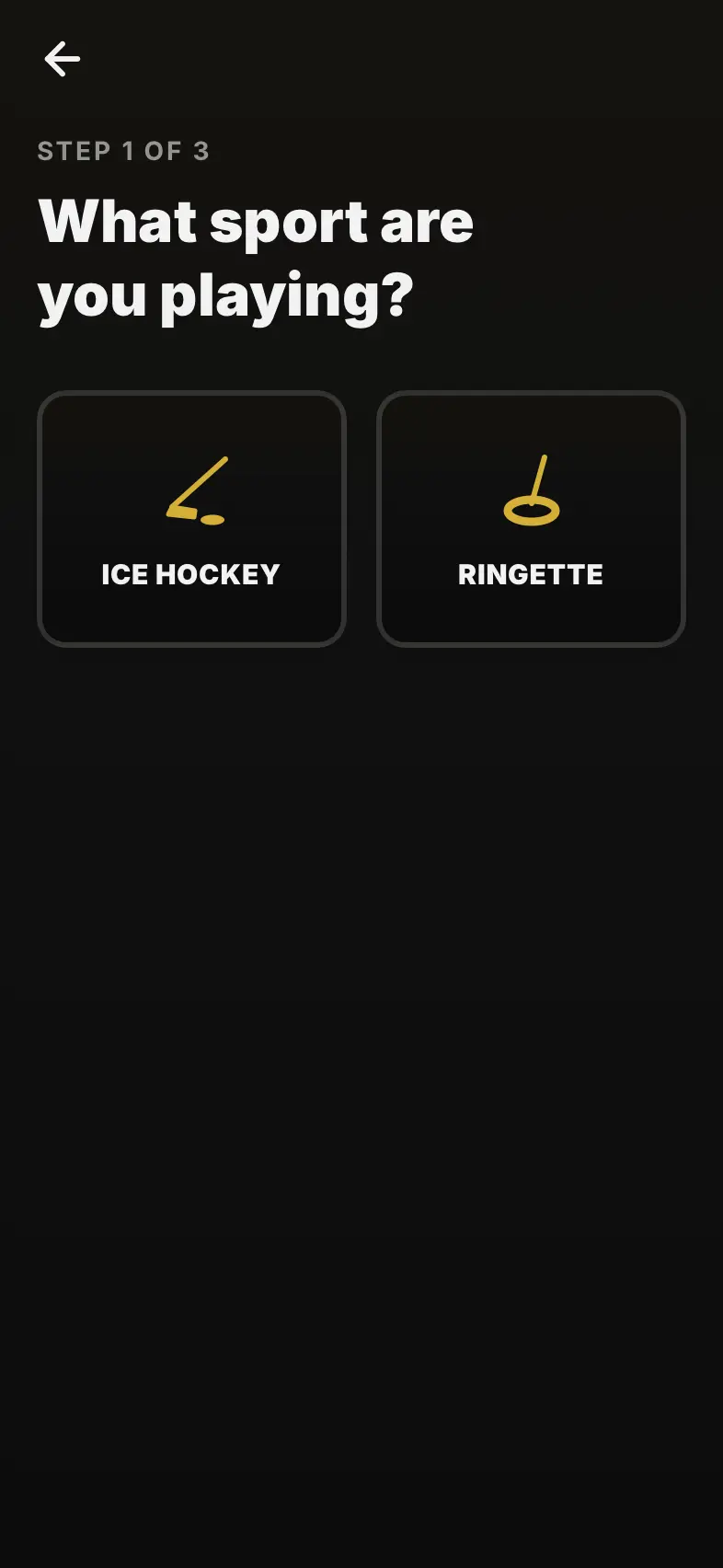
Pick the sport
Hockey or ringette. Each has its own game screen: periods, faceoffs in hockey, the Hype button in ringette.
-
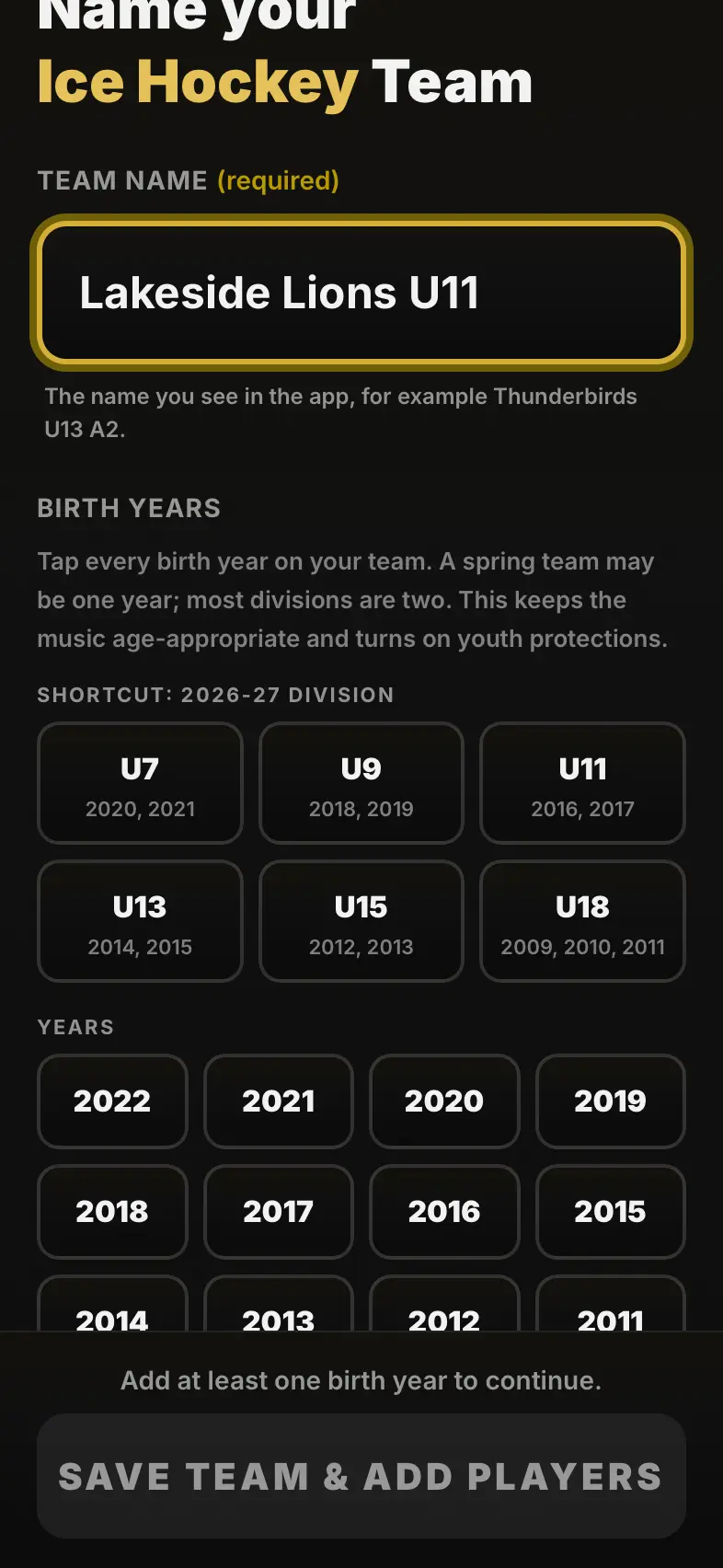
Name it and pick the birth years
Type the team name the way you want it on screen. Tap the birth years on your team: they choose songs that suit the age, and kids' teams only ever hear clean songs.
-
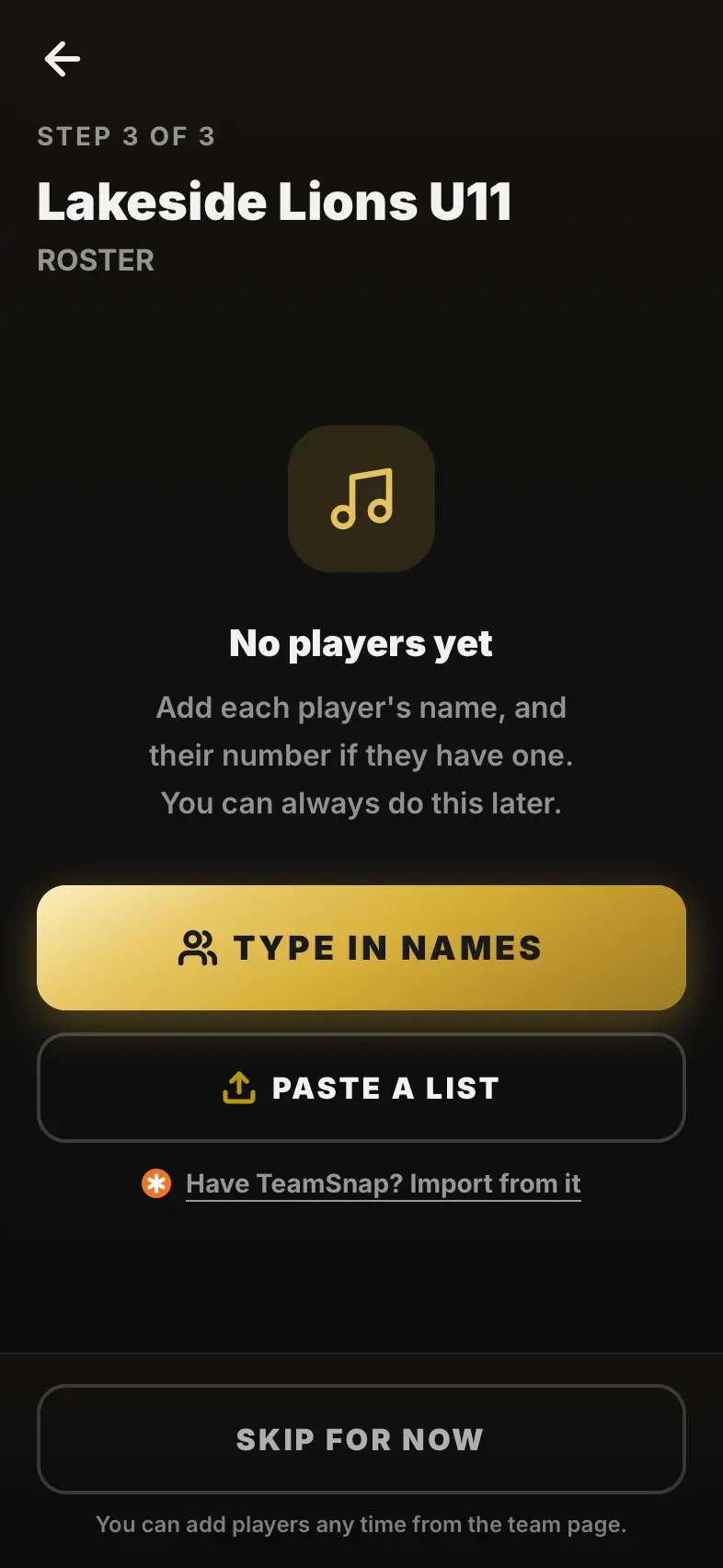
Add your players
Type in Names is quickest for most teams. Paste a List takes a roster copied from an email or spreadsheet. Have TeamSnap? Import from it. Or Skip for Now and add players later.
-
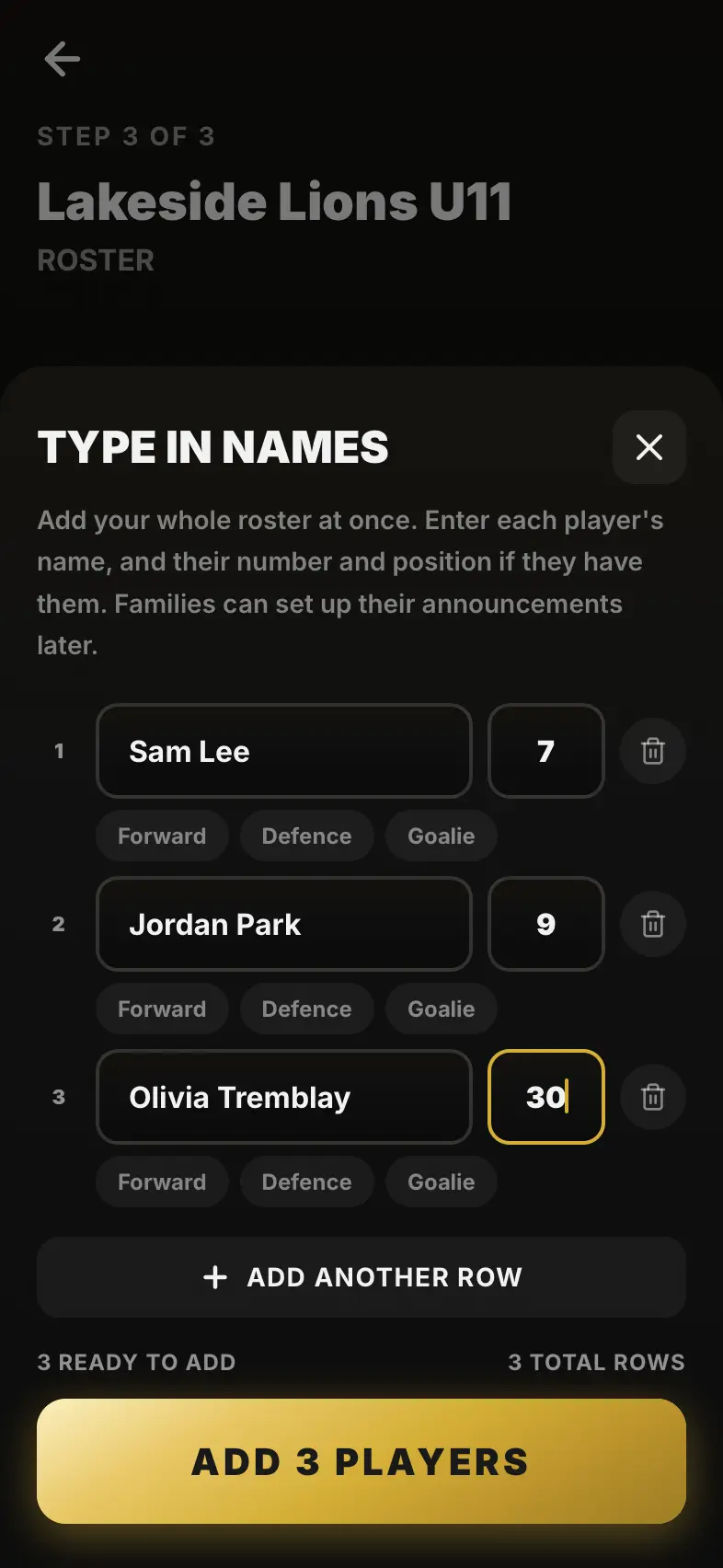
Type the names and numbers
One row per player: the name, the number, and Forward, Defence or Goalie if you like. Add them all in one go. Each player's announcement is recorded in the background.
-
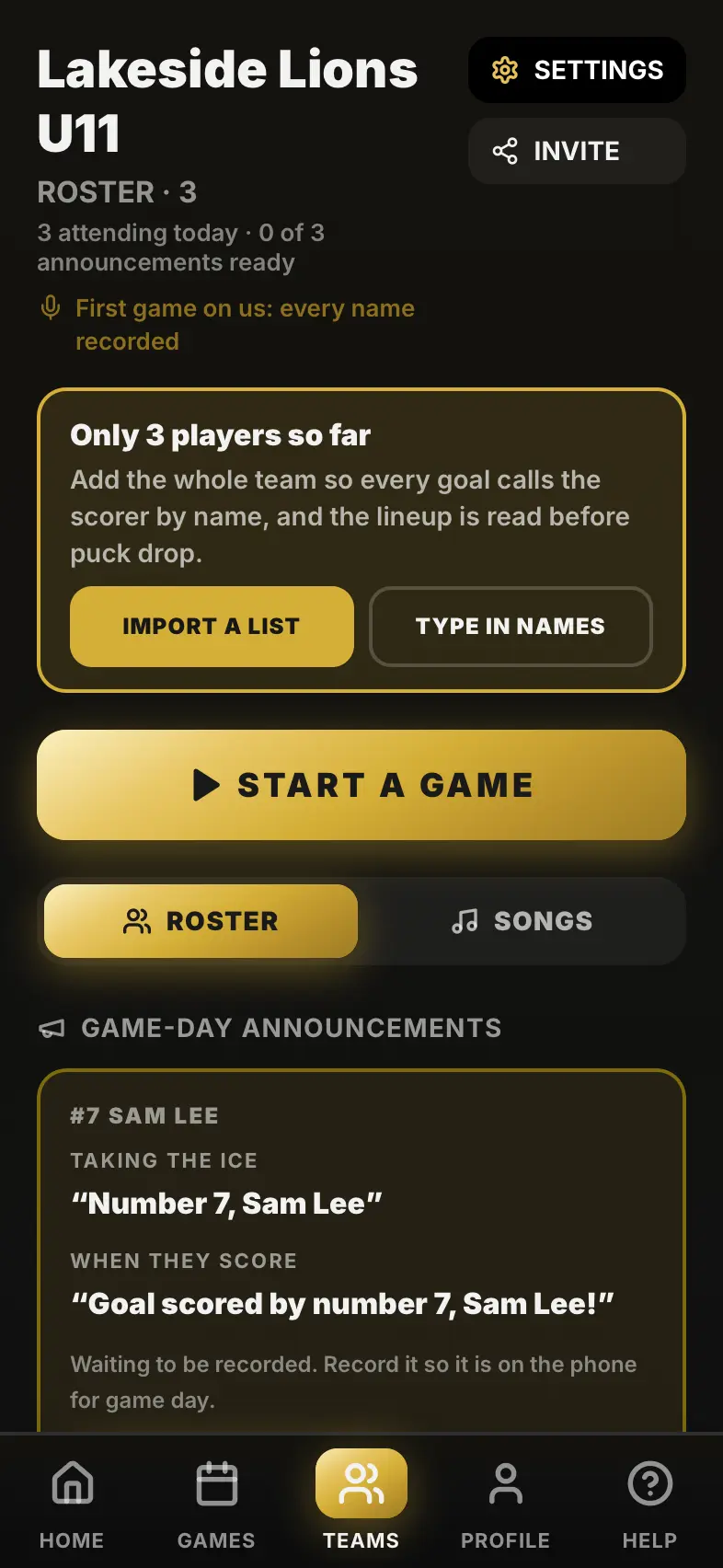
Your team is ready
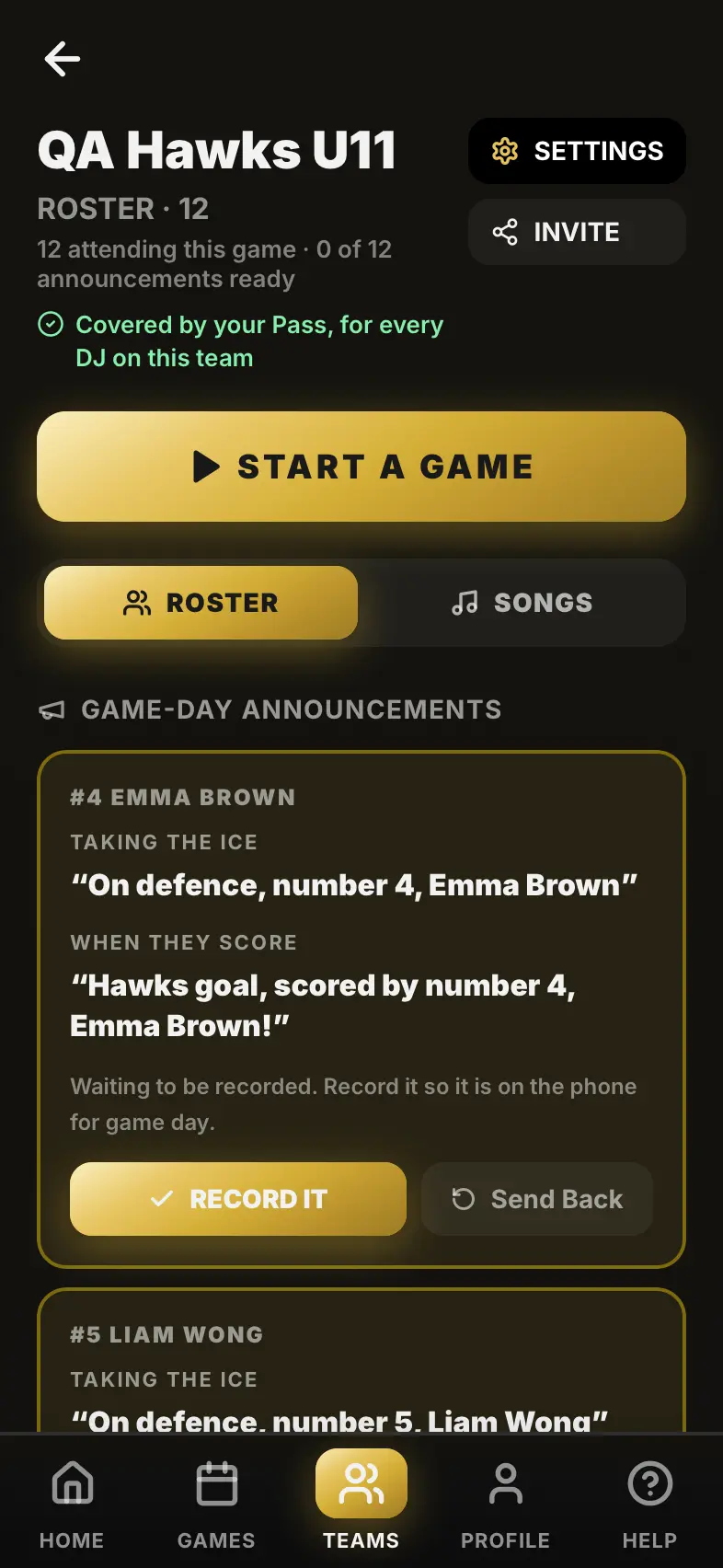
This is your team page. Start a Game opens the game screen. Invite sends the family link, so parents can check how their player's name sounds.
Done. Next: Run your first game
Guide 2 of 5 · 12 steps
Run your first game
Open the game screen once at home with signal, so every announcement is on the phone. At the rink, plug into the sound system or a Bluetooth speaker and turn on Do Not Disturb.
-
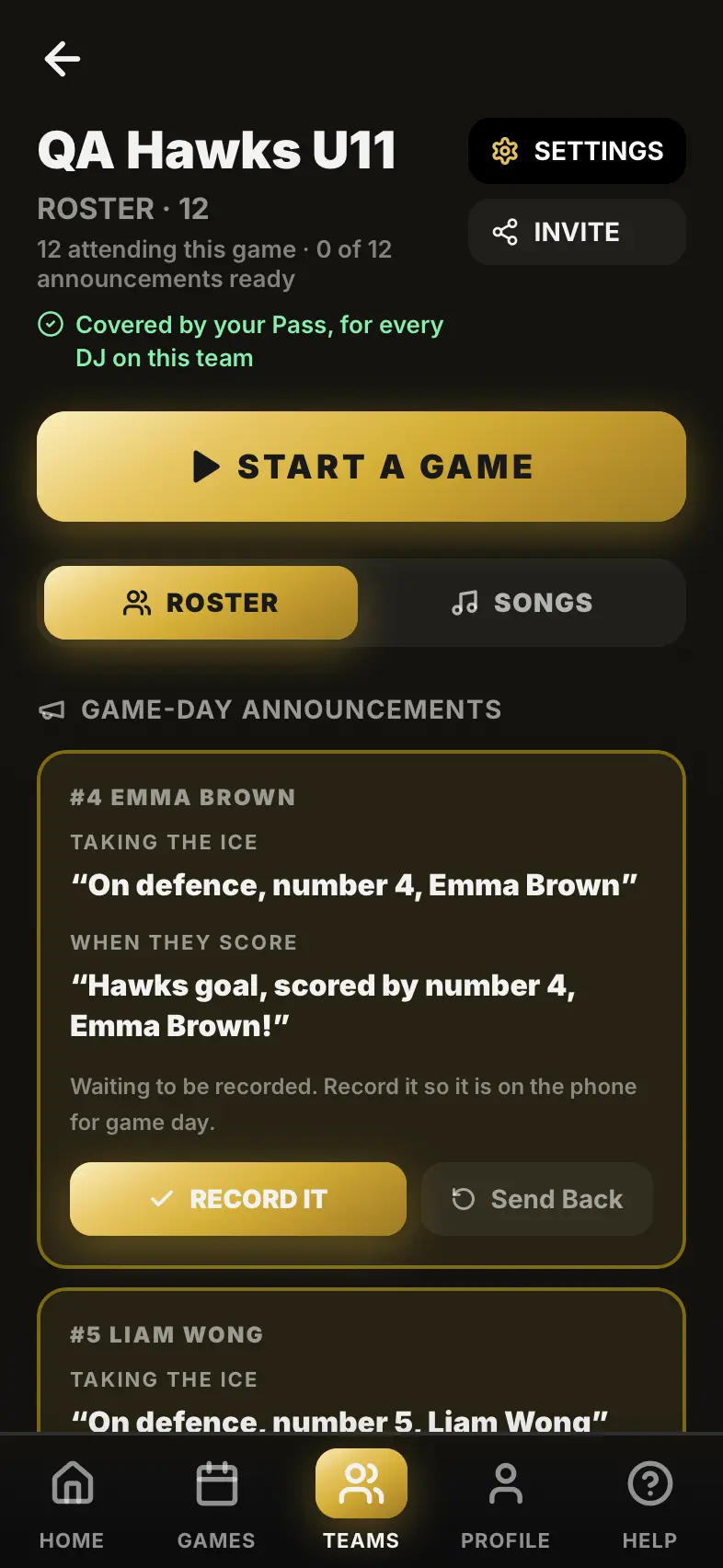
Start a Game
From your team page (or Home), Start a Game opens the game screen. Today's scheduled game is picked for you.
-
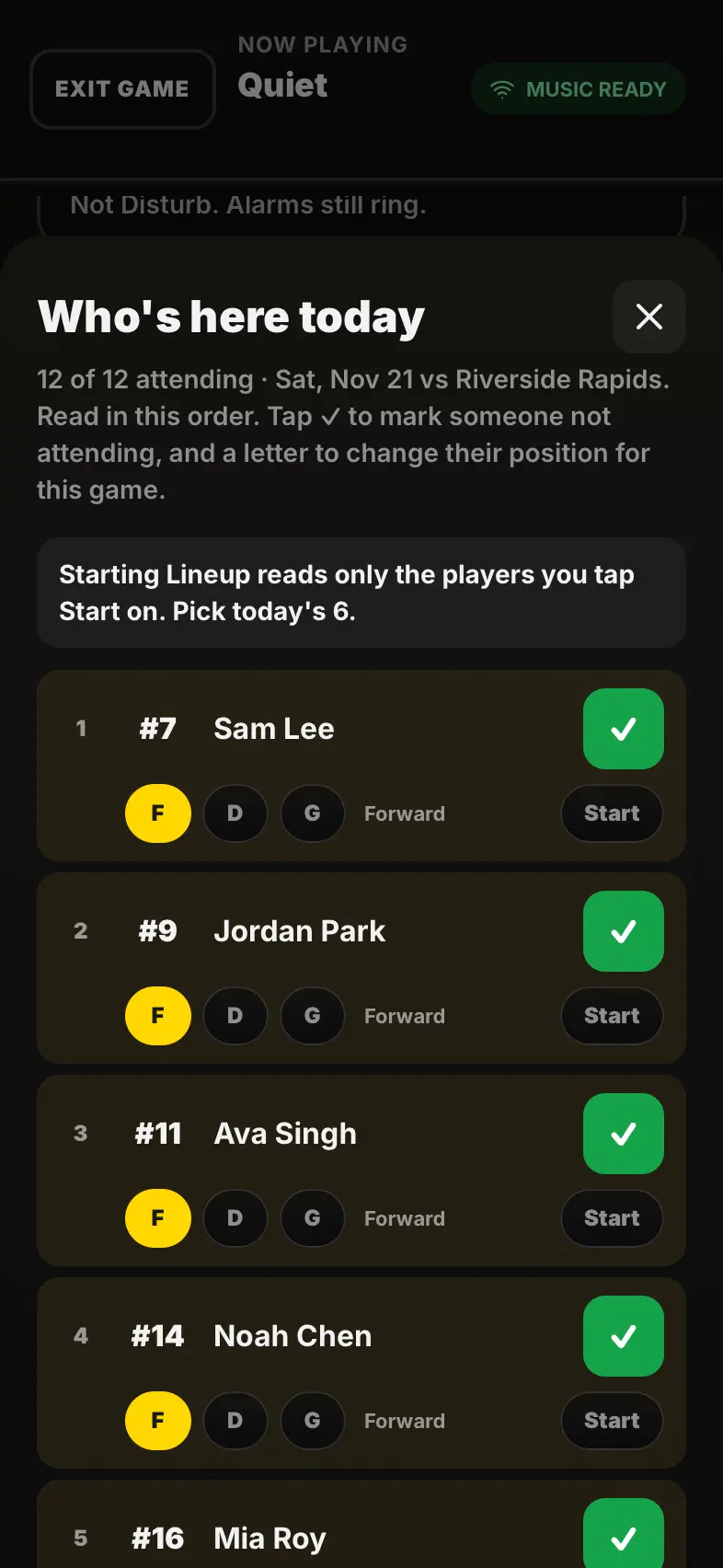
Check who's here
Check Who's Here lists the roster. Tap anyone who isn't at the game, and tap Start next to today's starters if you'll call a starting lineup.
-
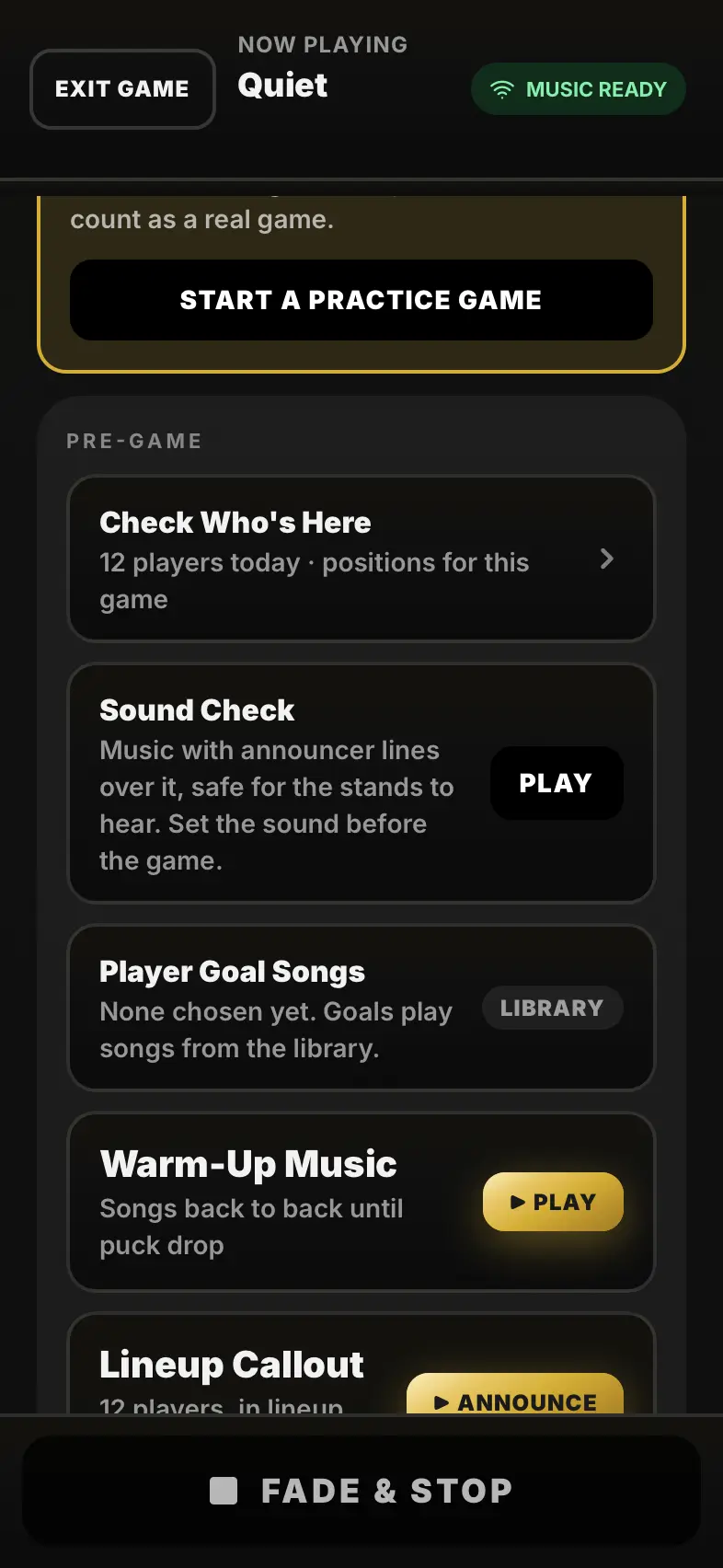
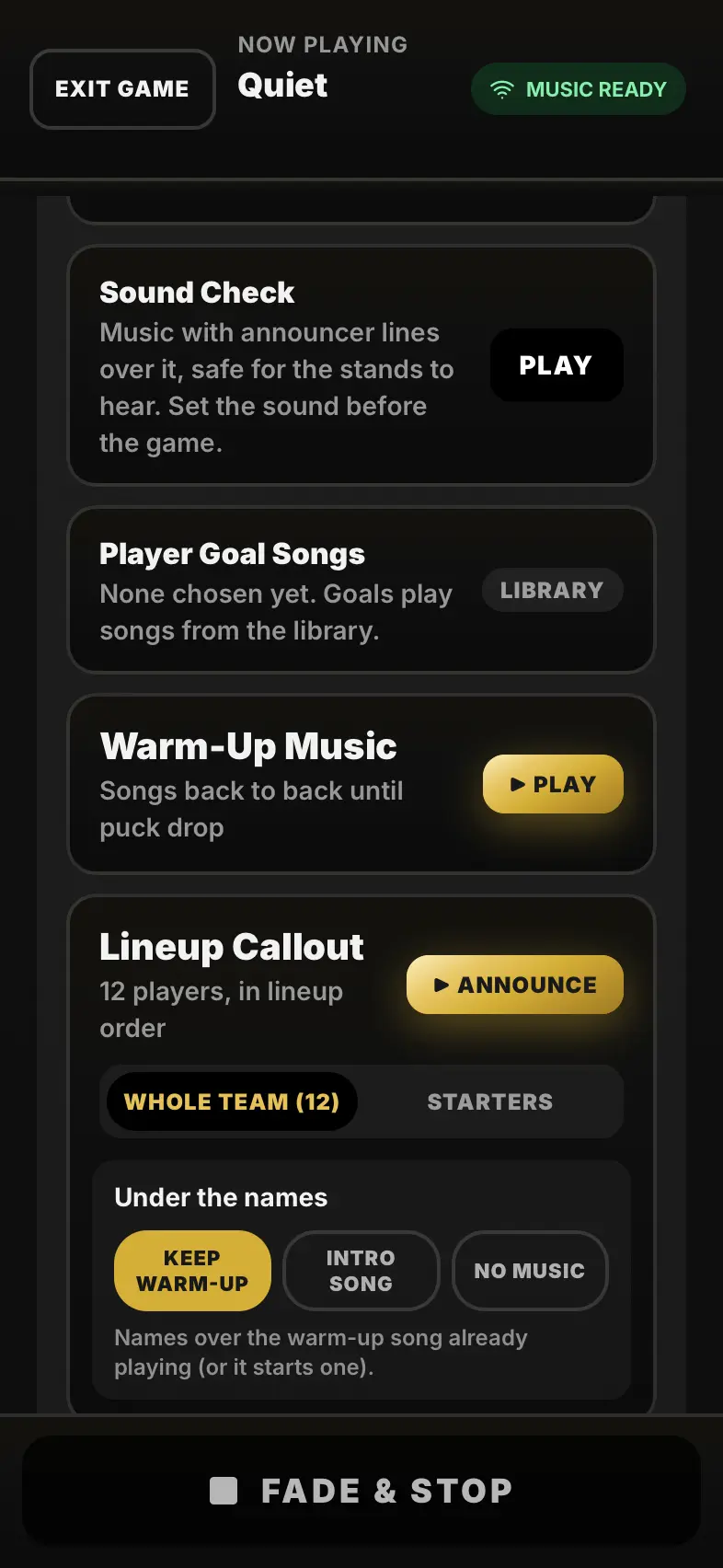
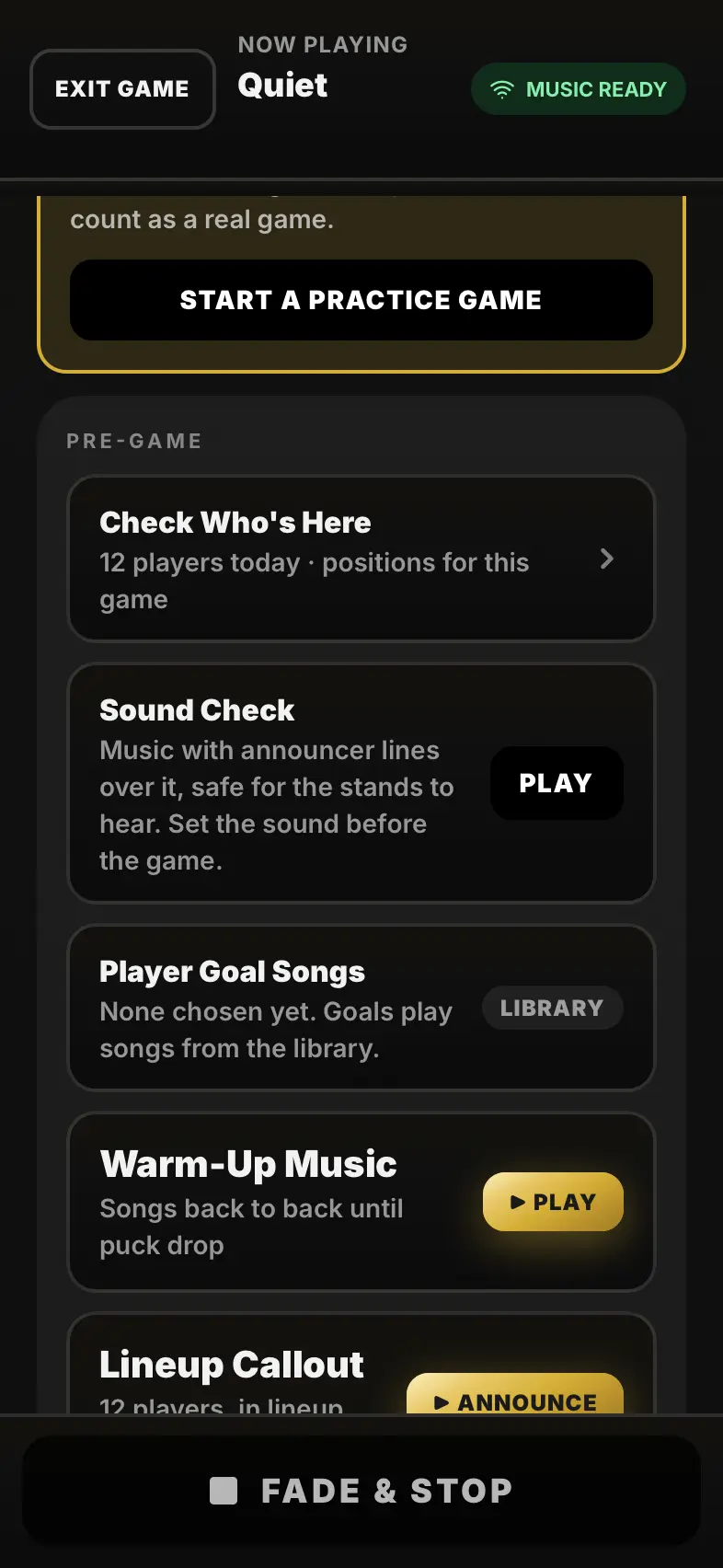
Sound Check
Play music with announcer lines over it, safe for the stands to hear. Set the volume on the speaker, and the voice against the music, before anyone hears a goal.
-
Warm-Up Music
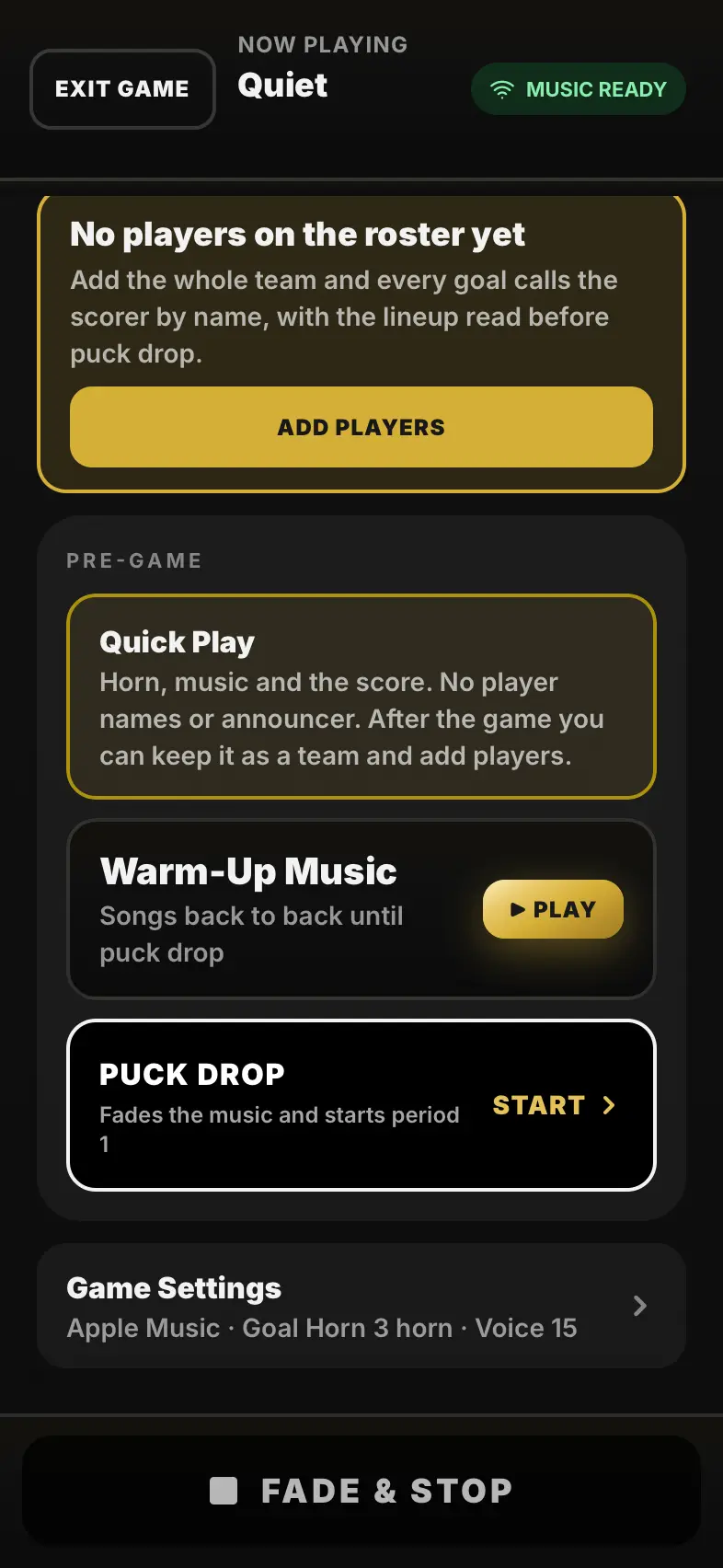
Songs play back to back during the warm-up and move on to the next by themselves. Pause, Resume and Next Song are right there.
-
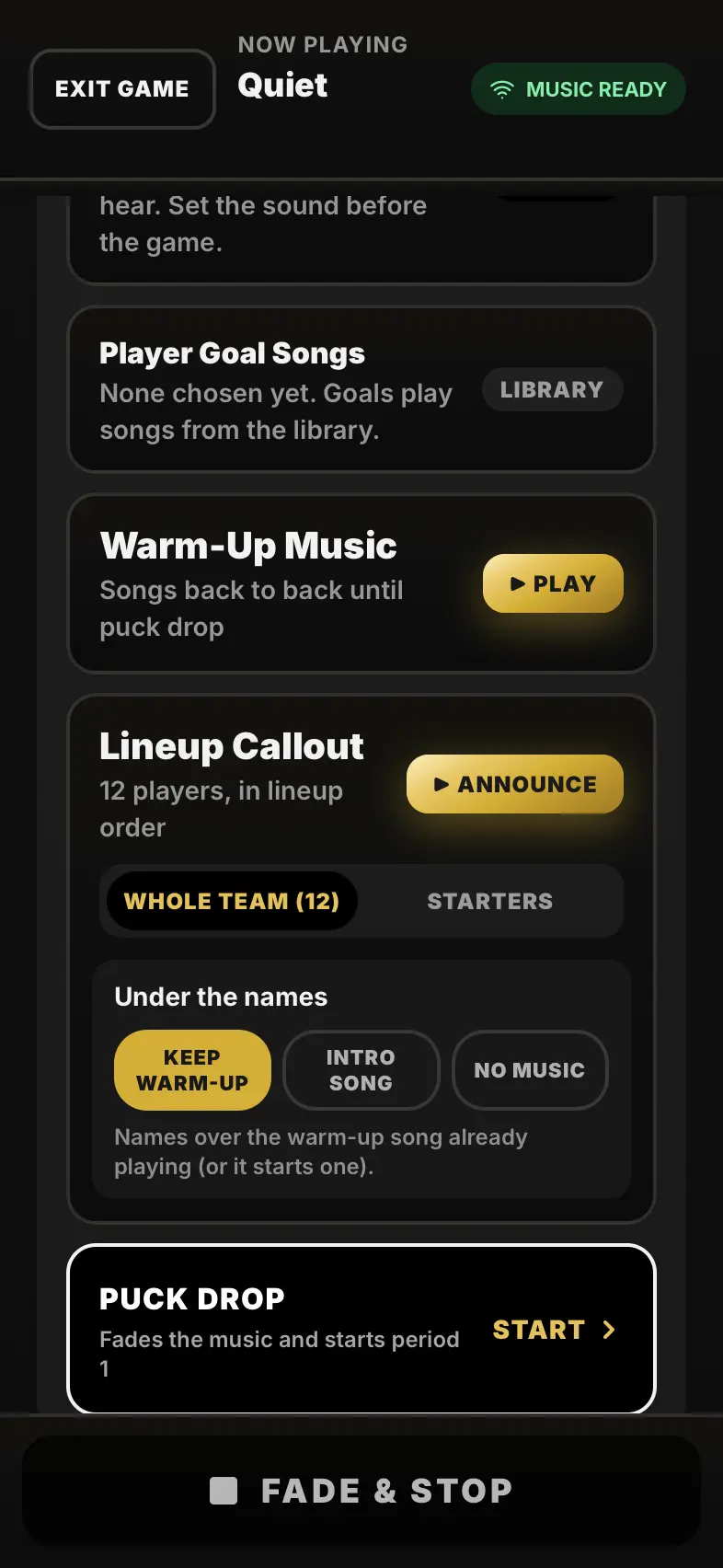
Call the lineup
Announce reads the team over the warm-up music: Whole Team opens with "Your Hawks lineup!", Starters with "Starting for your Hawks!", by position, goalie last.
-
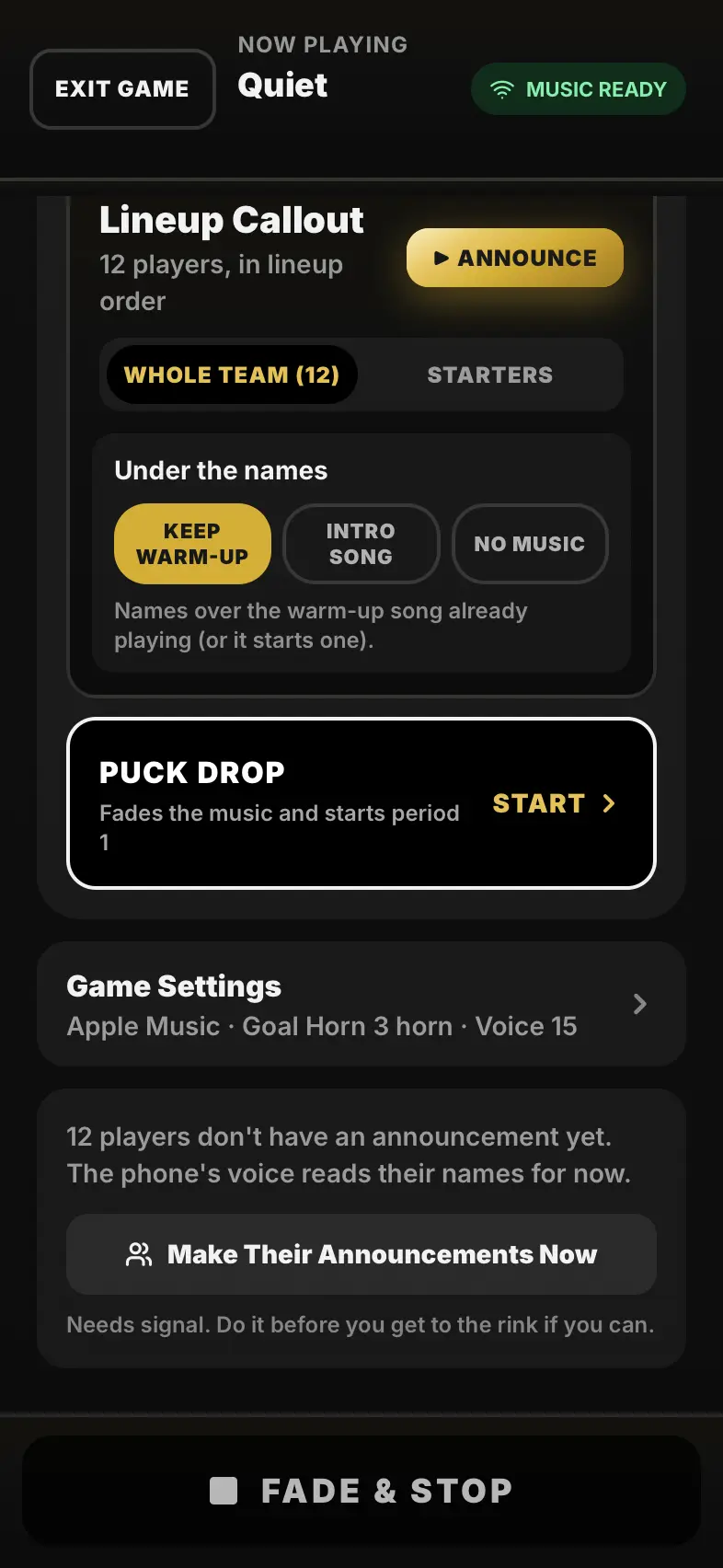
Puck Drop
Fades the music and starts period 1. The score, the periods and the in-play buttons take over the screen.
-
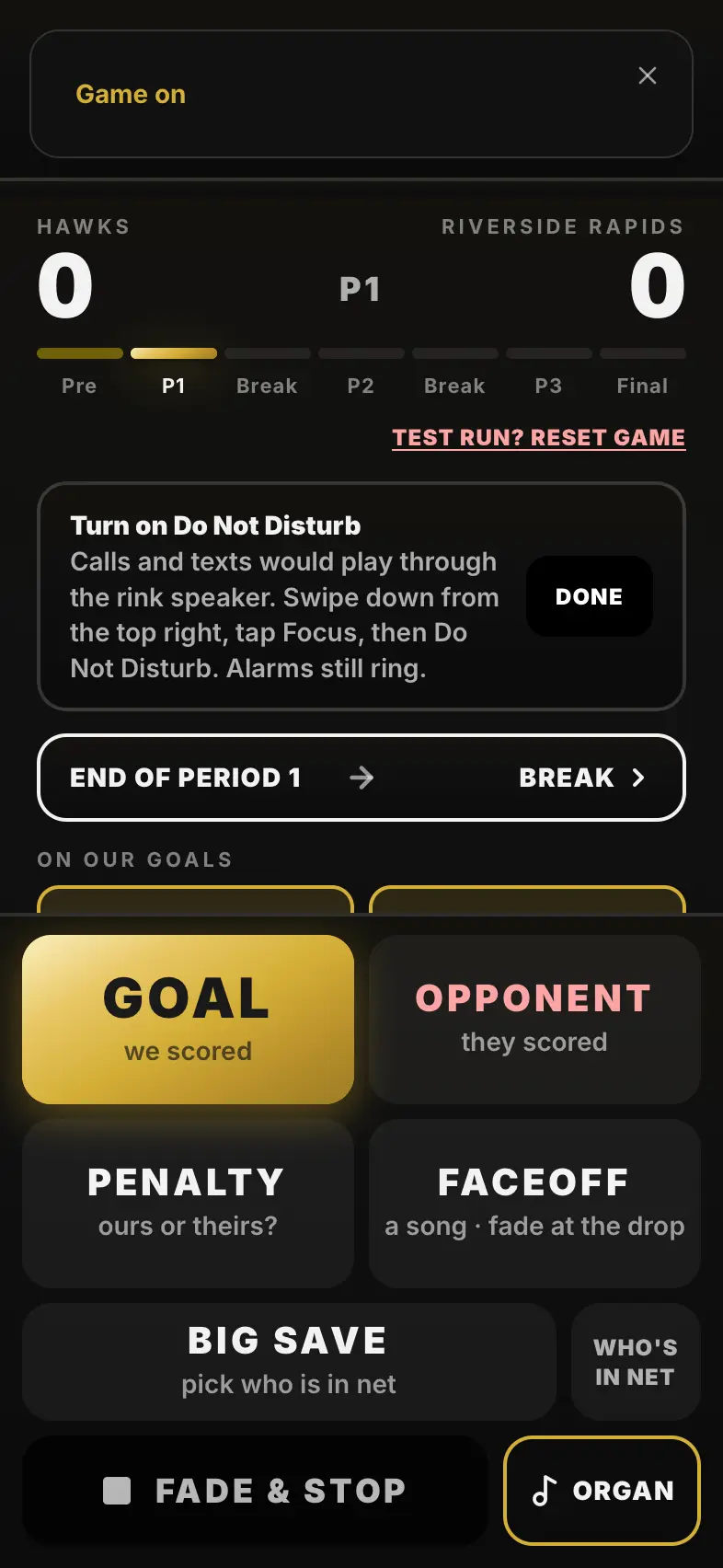
Goal!
Tap Goal the moment it goes in. The horn sounds straight away and the score goes up.
-
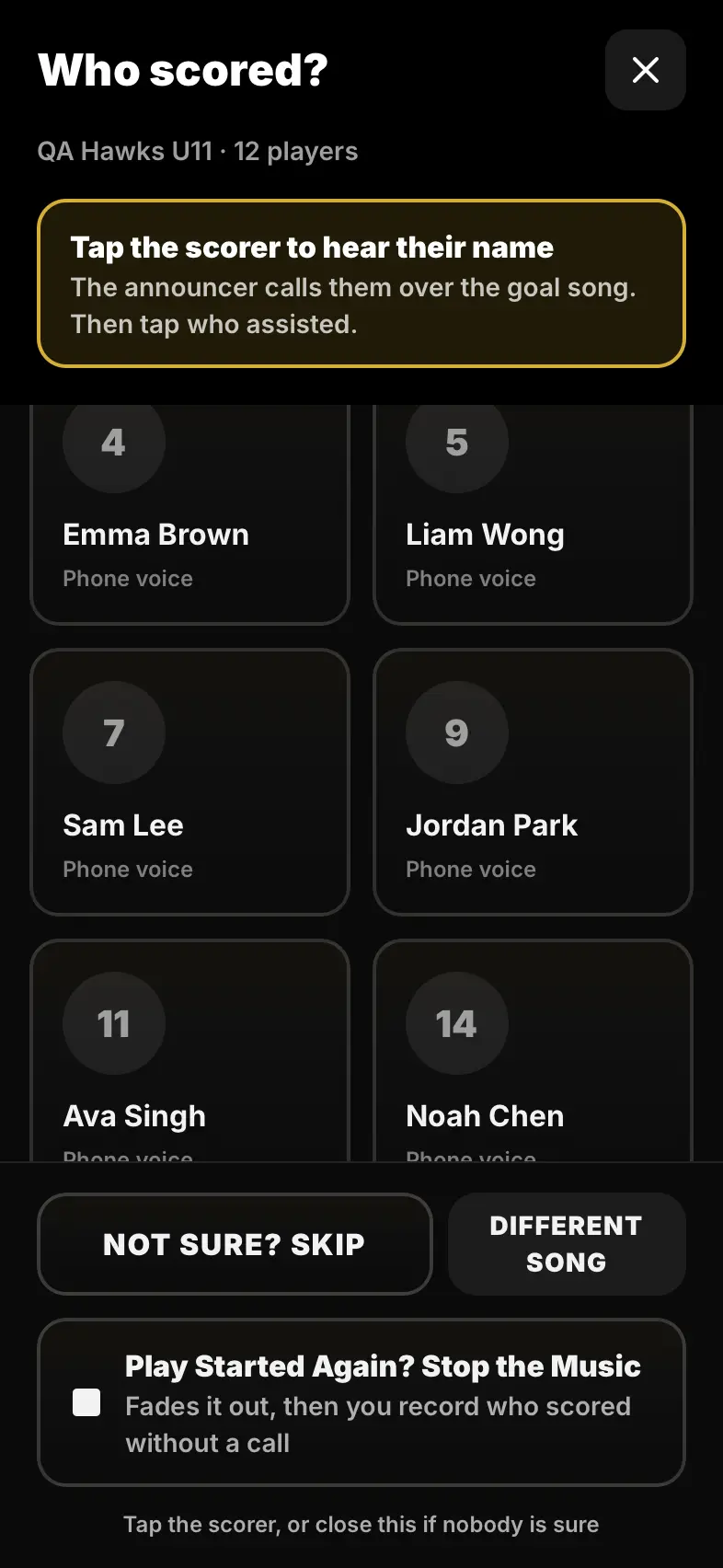
Who scored
Tap the scorer: the announcer calls their name and number, then the goal song plays. Add an assist, or skip it.
-
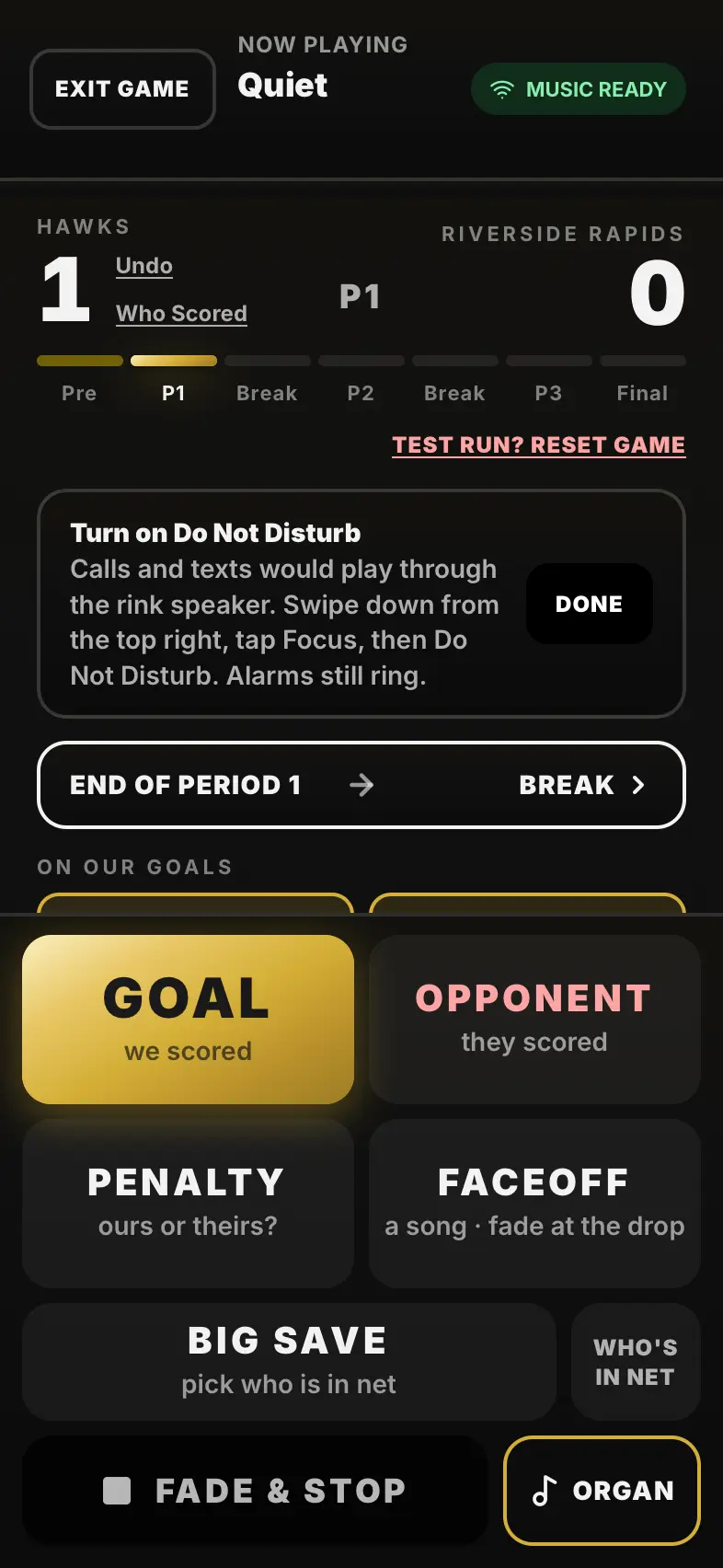
Faceoff, Penalty, Big Save, Opponent
Faceoff plays a song until the puck drops. Penalty asks whose. Big Save plays your goalie's song. Opponent counts their goal and plays something to lift the bench.
-
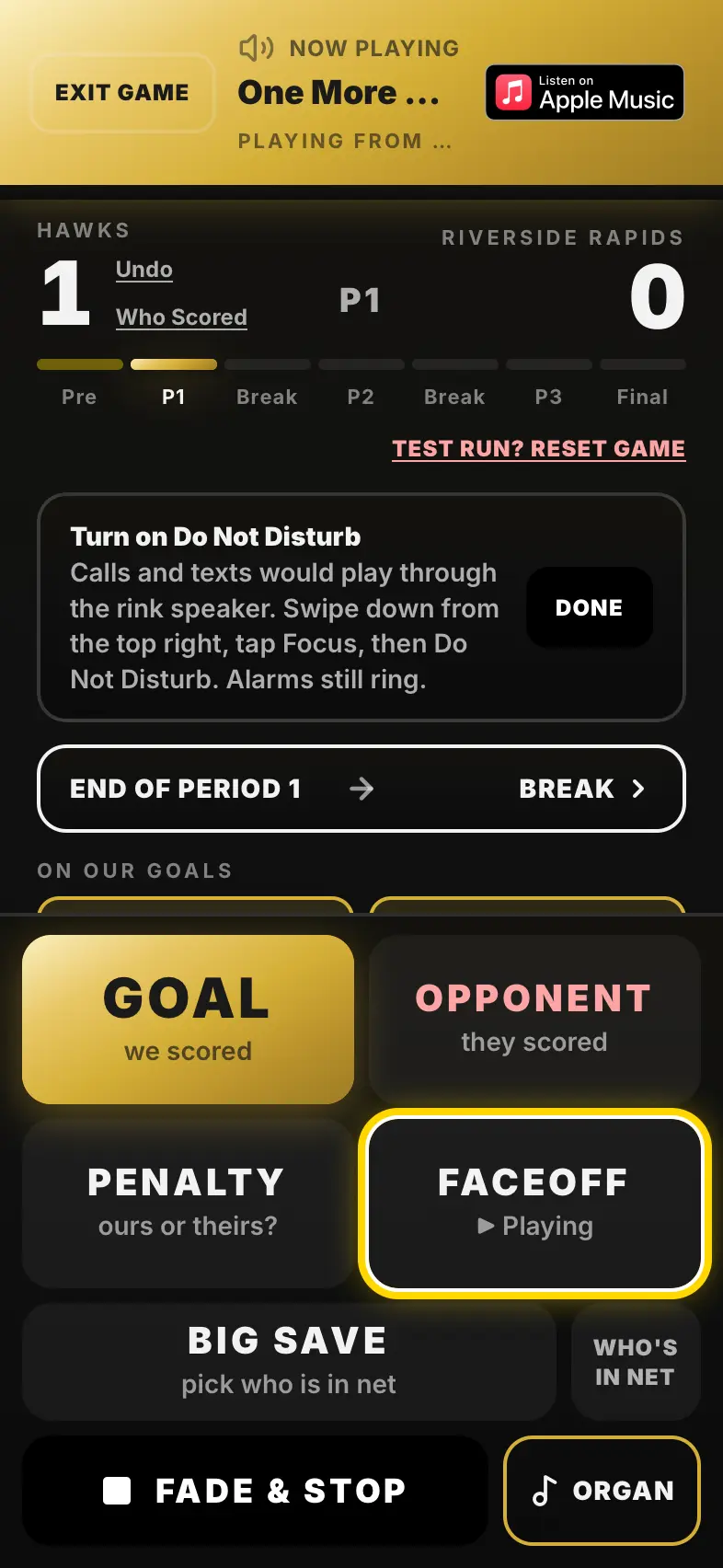
Fade & Stop
Always on screen. It fades whatever is playing, names included. When in doubt, Fade & Stop.
-
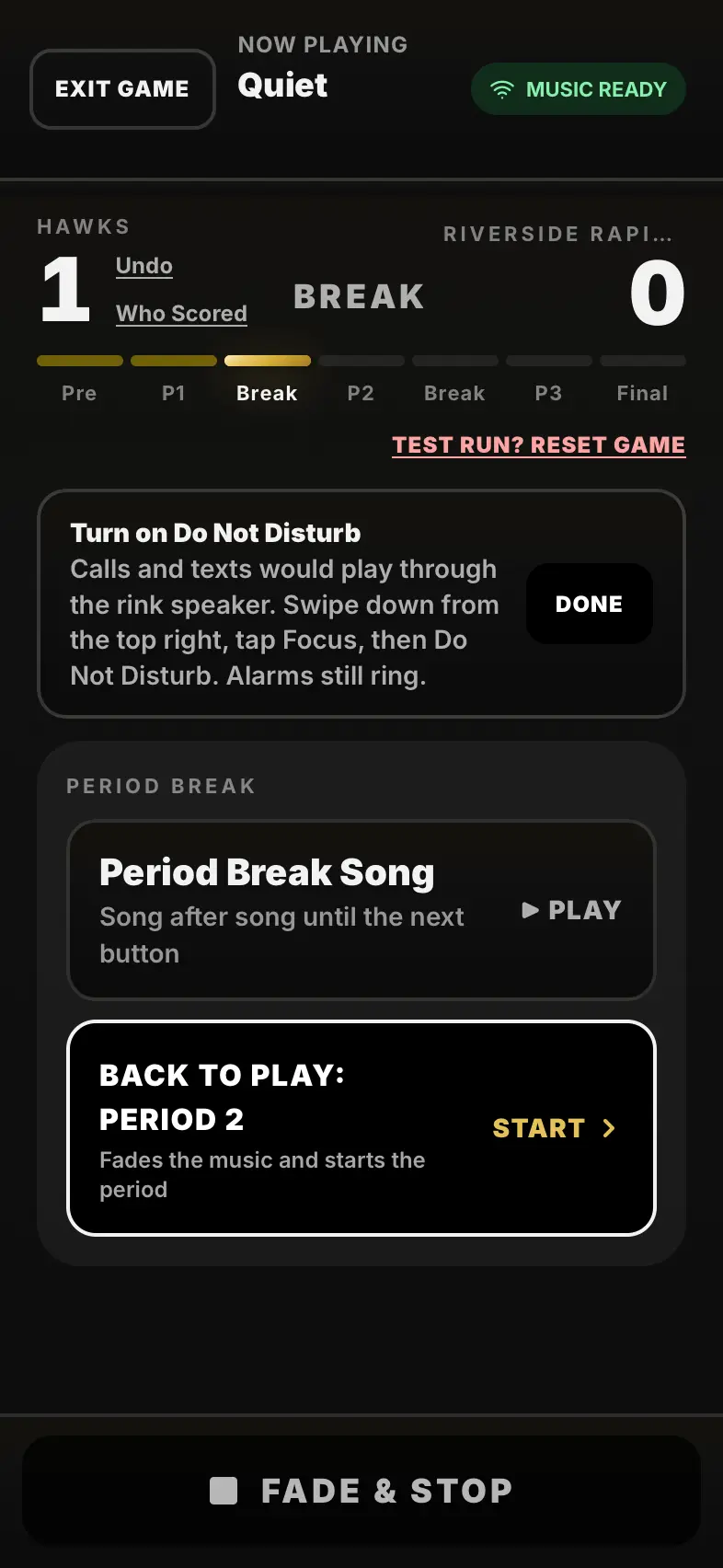
The break
End of Period, then Period Break Song: songs play one after another until you tap Back to Play.
-
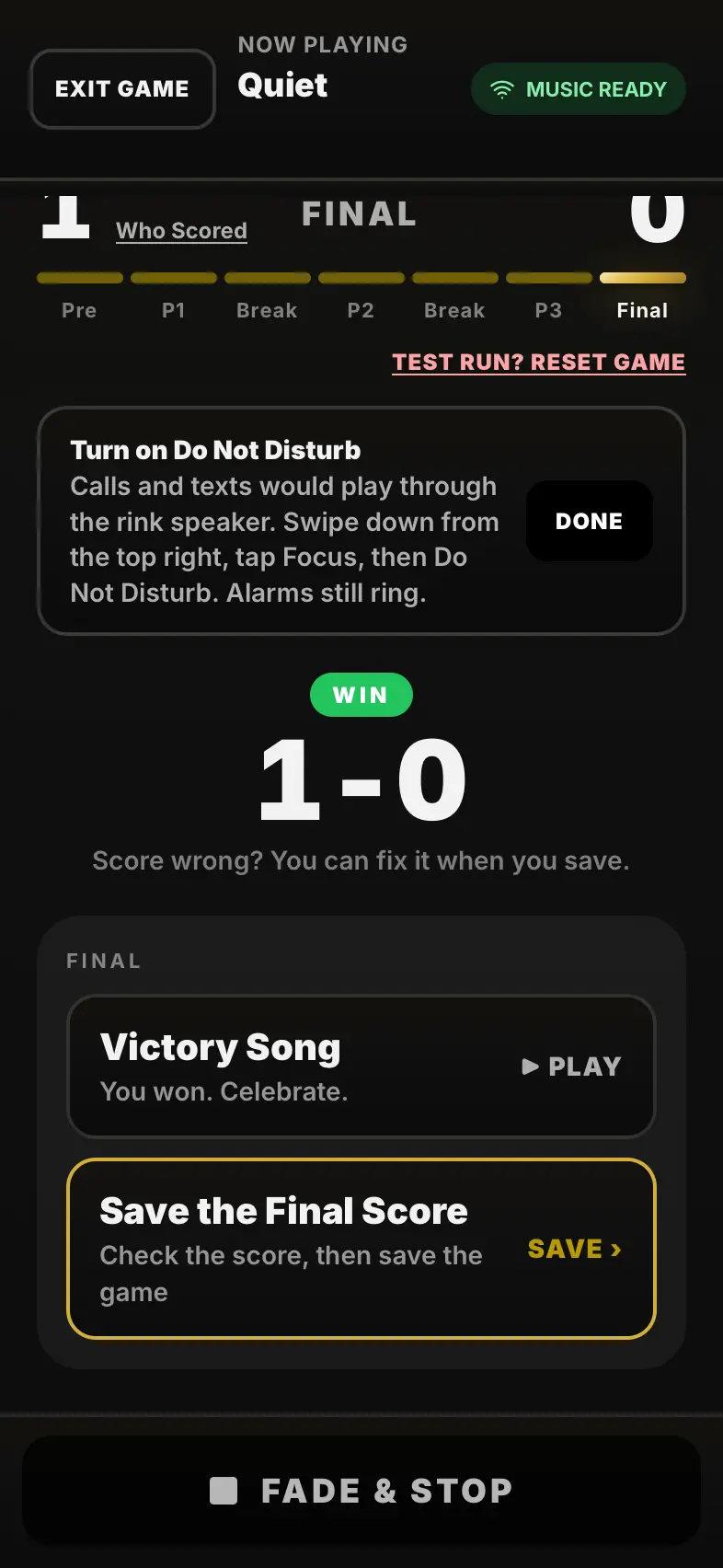
Save the Final Score
At the final, a victory song for a win or a friendly good-game song for the handshake line. Then Save the Final Score: the game, the goals and the scorers go to Games for the recap.
Done. Next: Quick Play: a game with no set-up
Guide 3 of 5 · 4 steps
Quick Play: a game with no set-up
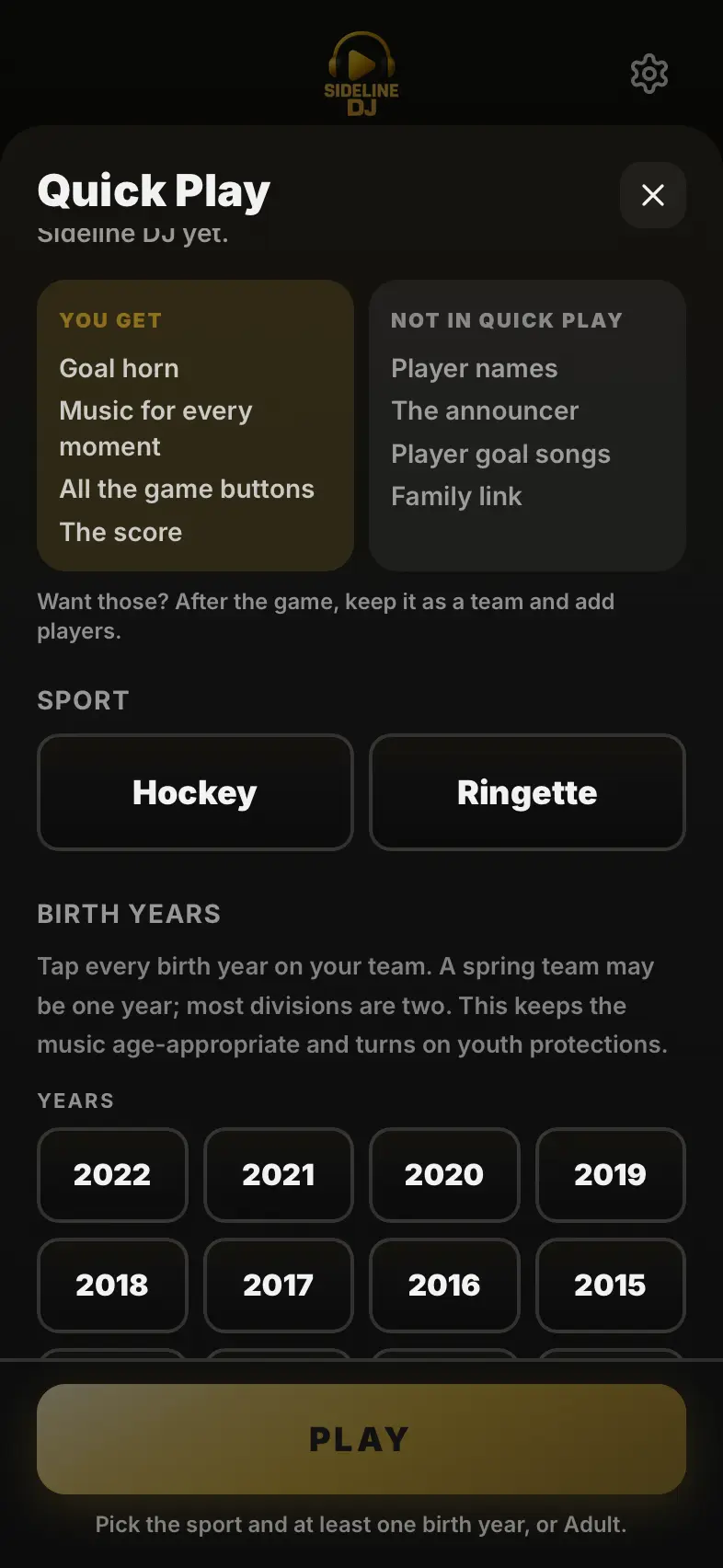
Quick Play gives you the horn, the music and every game button without setting up a team. No player names and no announcer: those come when you keep it as a team.
-
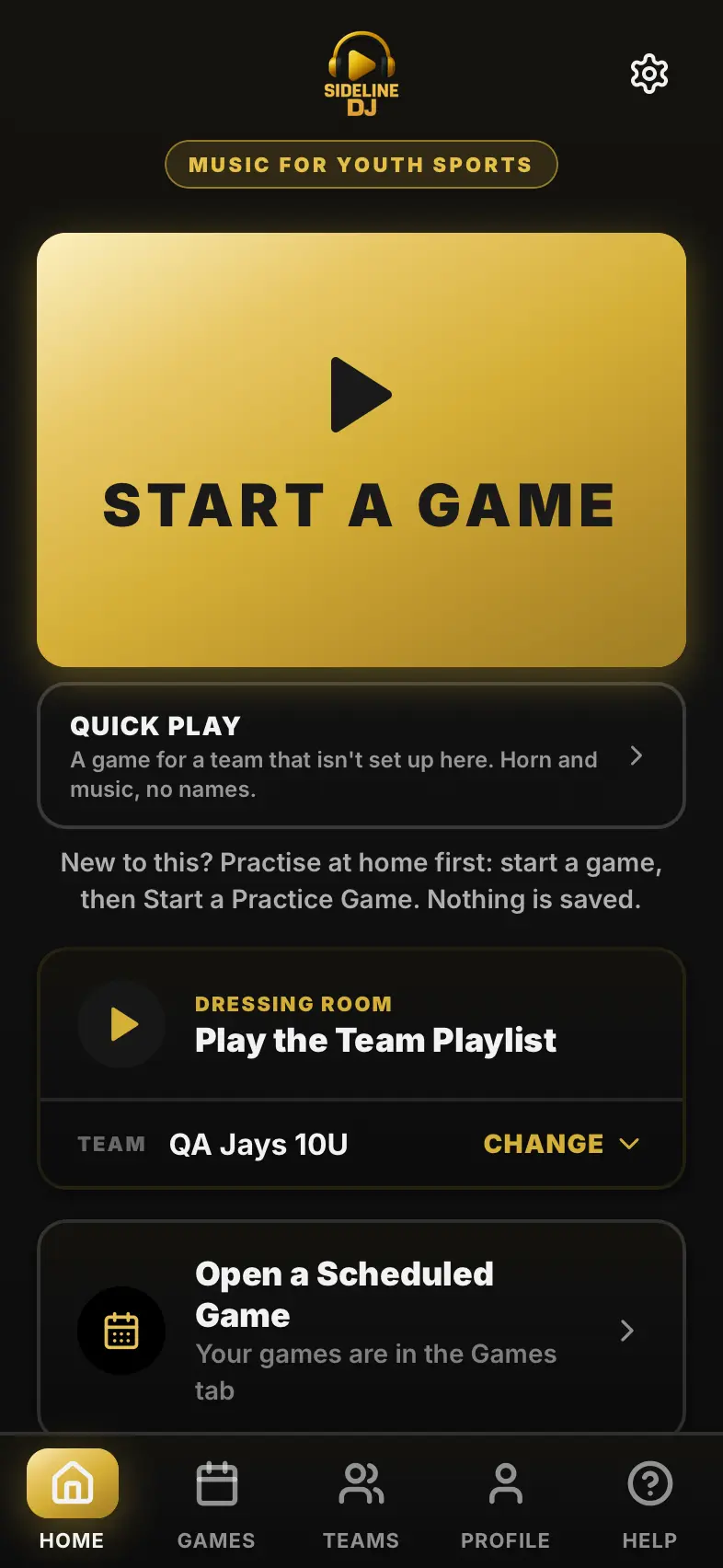
Tap Quick Play
On Home, under Start a Game. It's always there, even if you already have teams.
-
Pick the sport
Hockey or ringette. The card at the top says what you get and what Quick Play leaves out.
-
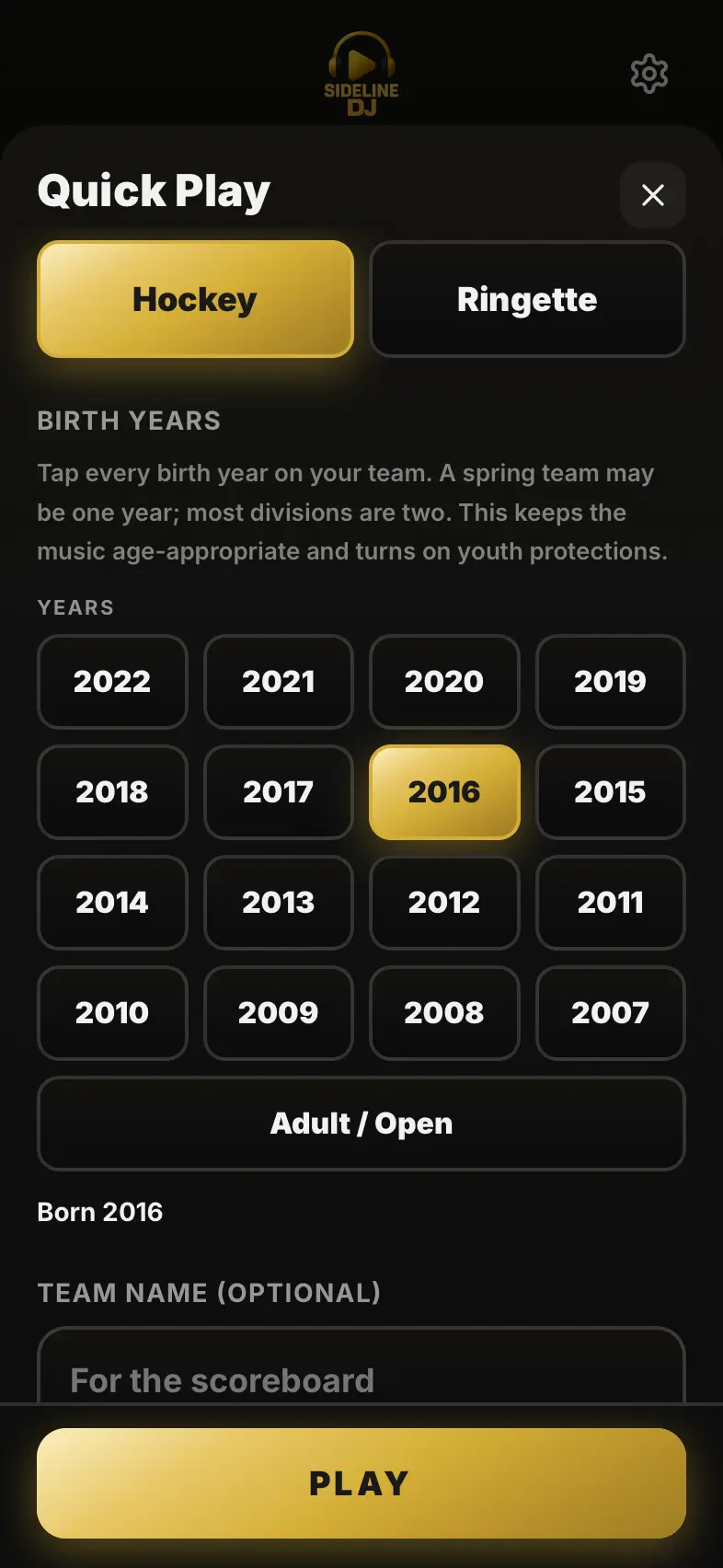
Tap the birth years, then Play
Just the years, no divisions, so it works the same in Canada and the US. Kids' years mean clean songs only.
-
Run the game
The full game screen: warm-up, puck drop, goal horn and songs, faceoff, penalties, the break and the final. After the game it offers to keep it as your team, so you can add players.
Done. Next: Get the families involved
Guide 4 of 5 · 5 steps
Get the families involved
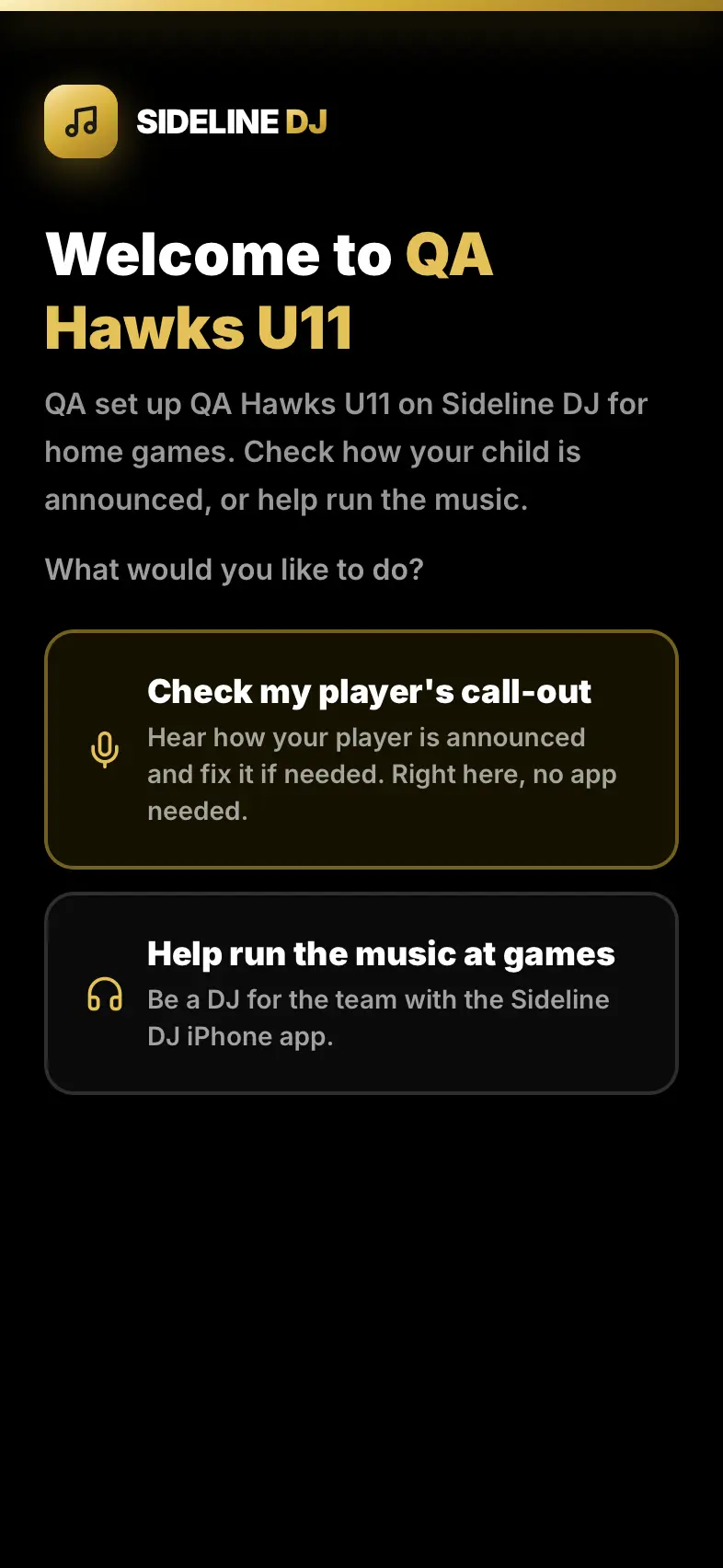
Families check how their player's name sounds and can pick goal songs, from a link, with no app. Other parents can share the DJ job.
-
Send the family link
On your team page, Invite sends one link to the team chat or email. It's the same link for every family.
-
A parent opens it
In any phone's browser, no app and no account. They pick My player's call-out.
-
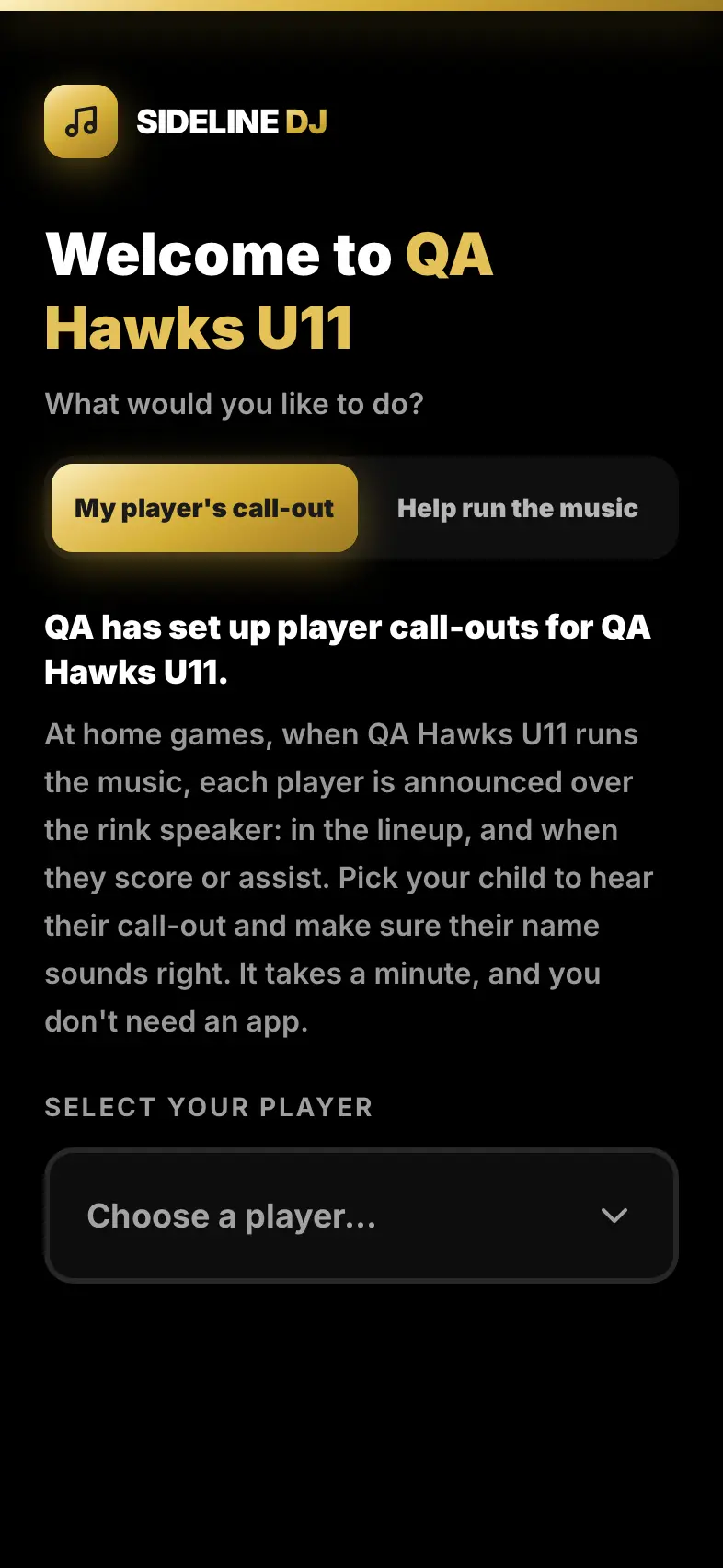
They choose their player
From the team's roster.
-
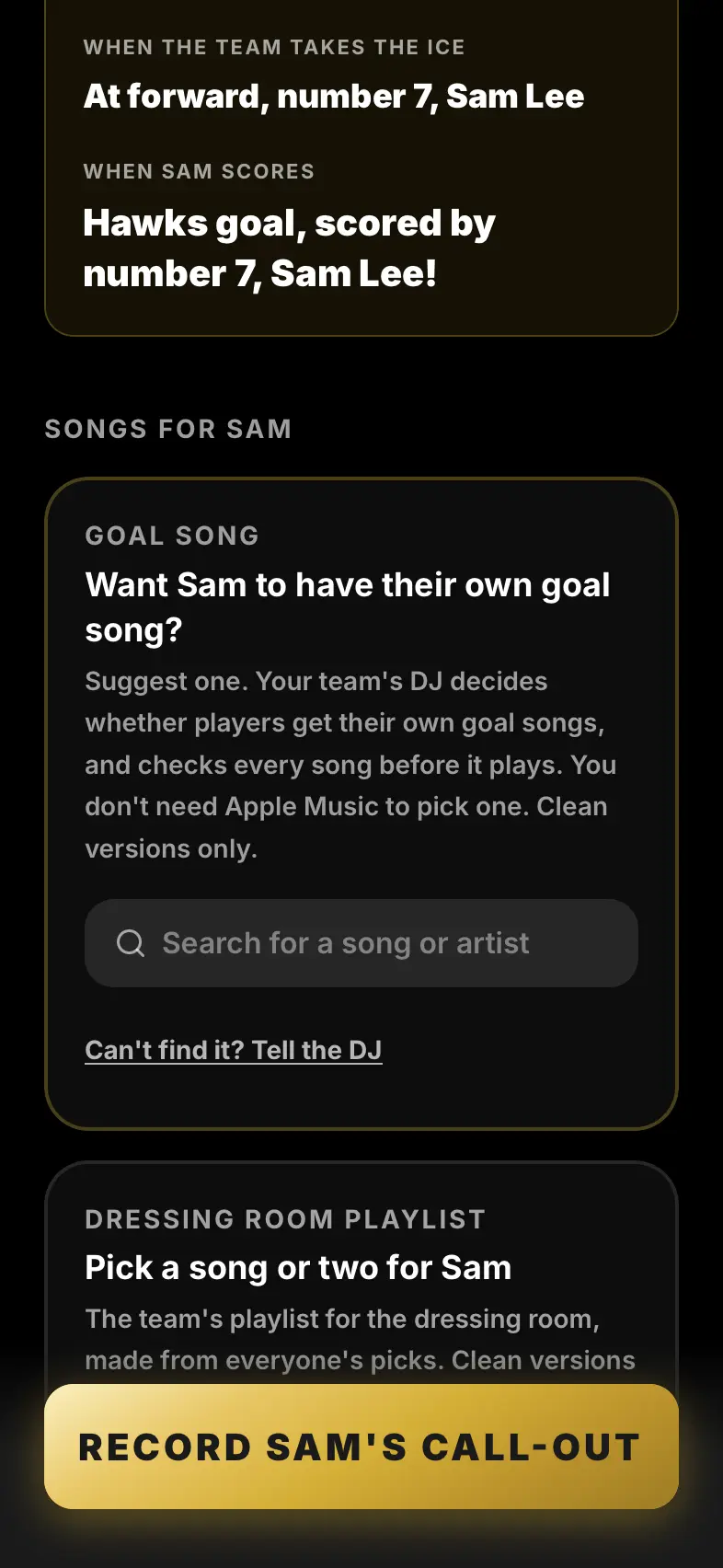
They hear it, and fix it if needed
They hear exactly how the announcer says the name. If it's said wrong, they type how it sounds and record it again. If your team has player goal songs on, they can also request a goal song for you to approve.
-
Share the DJ job
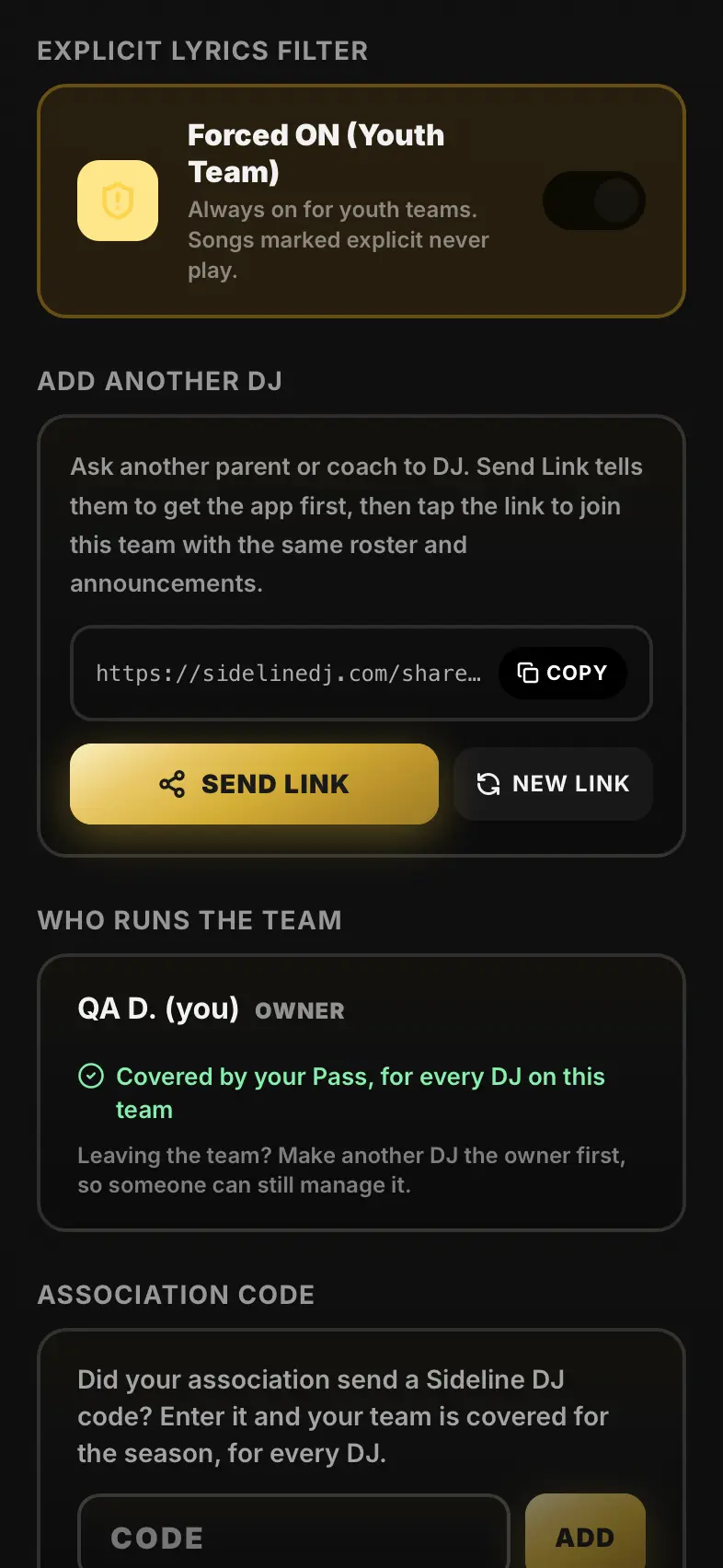
In Team Settings, Add Another DJ sends a link to the parents who take turns in the booth. They join the same team: same roster, same announcements, same songs.
Done. Next: Make it sound like your team
Guide 5 of 5 · 6 steps
Make it sound like your team
Sideline DJ picks good songs for every moment out of the box. These are the ways to make them yours.
-
Your team's songs
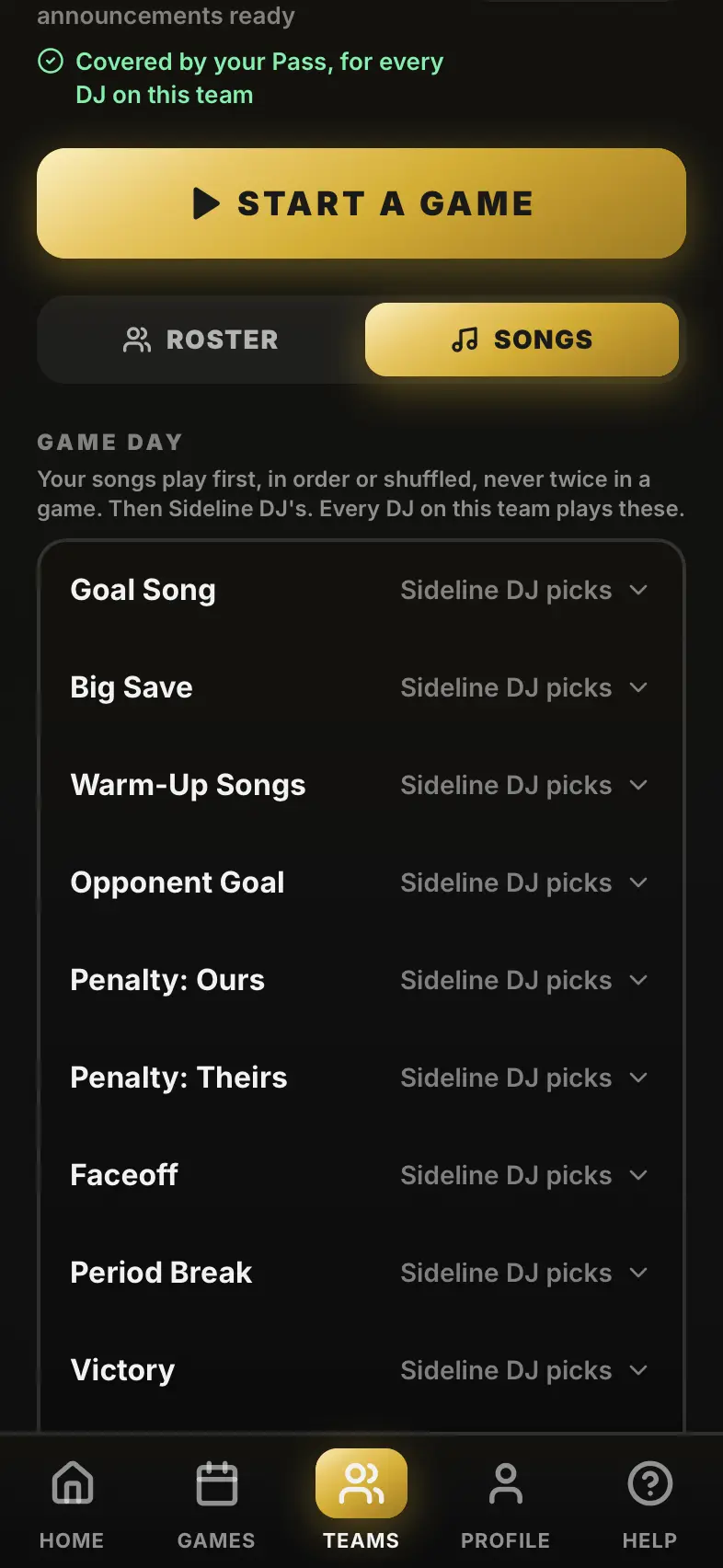
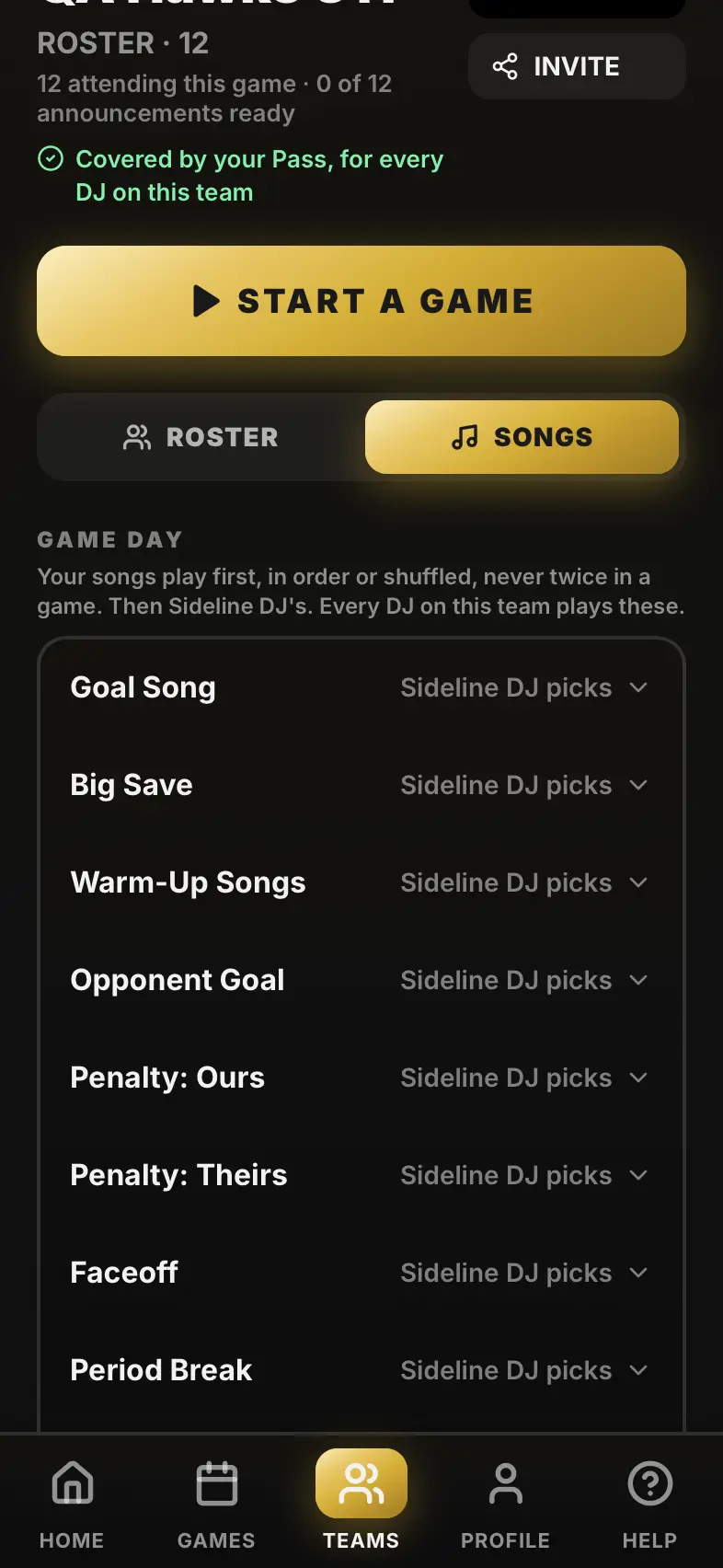
On the team page, Songs. Each moment (warm-up, goals, penalties, the break, the final) can have your team's own songs, played first. Everything else comes from Sideline DJ's picks.
-
Big Save songs
Give the moment after a big save its own songs. Each goalie can have their own.
-
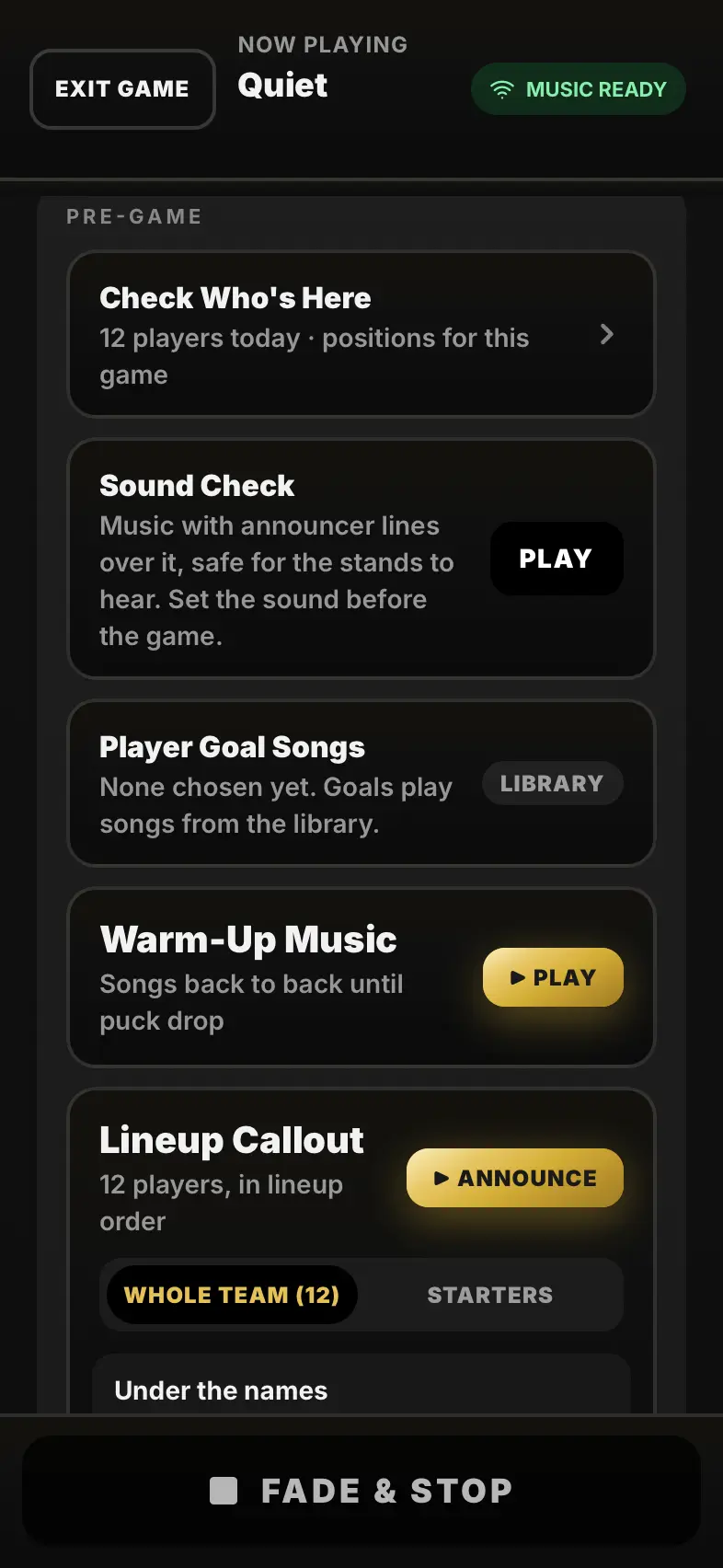
Player goal songs
Each player can have their own goal song. Families can request one from the family link and you approve it.
-
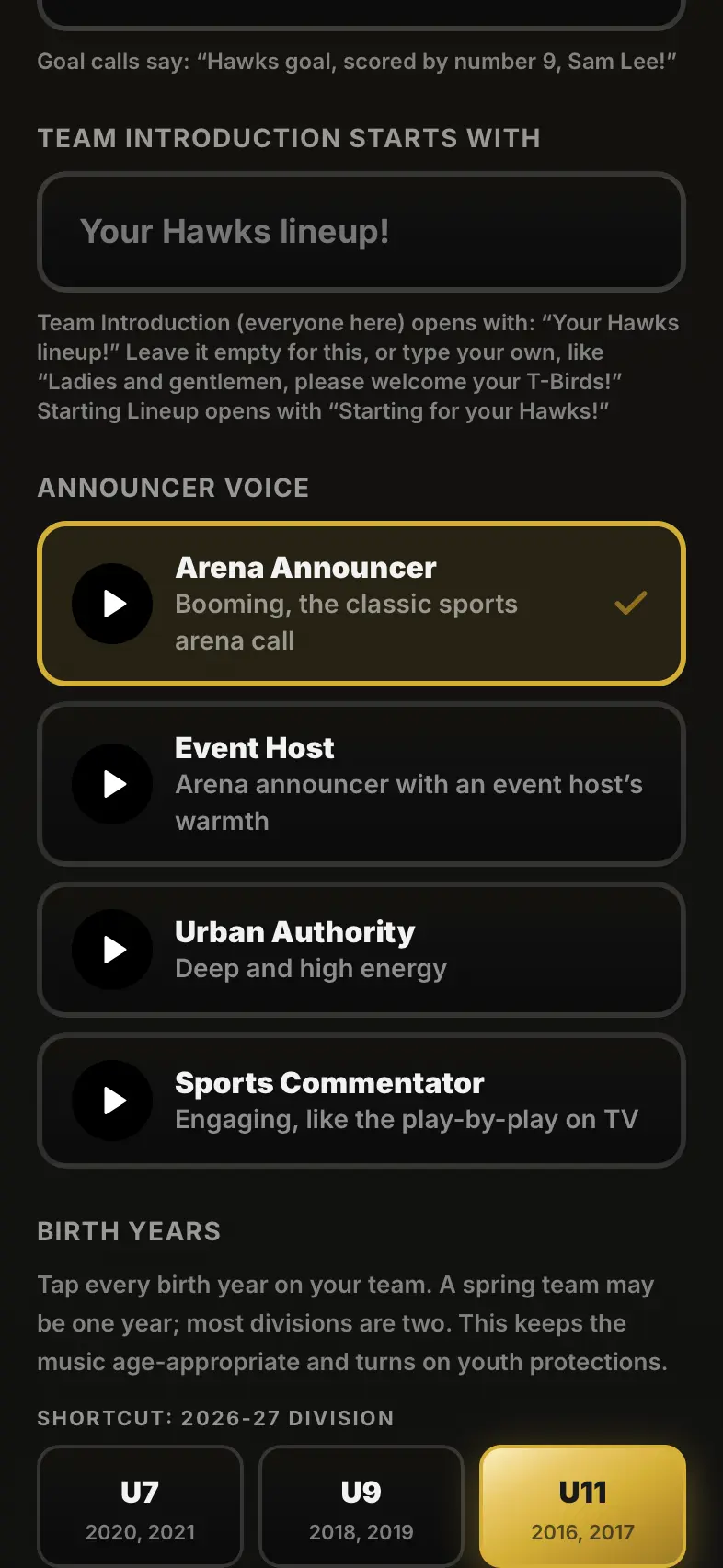
The announcer's voice
In Team Settings, pick from several announcer voices. The team name it says, and how it says it, are set there too.
-
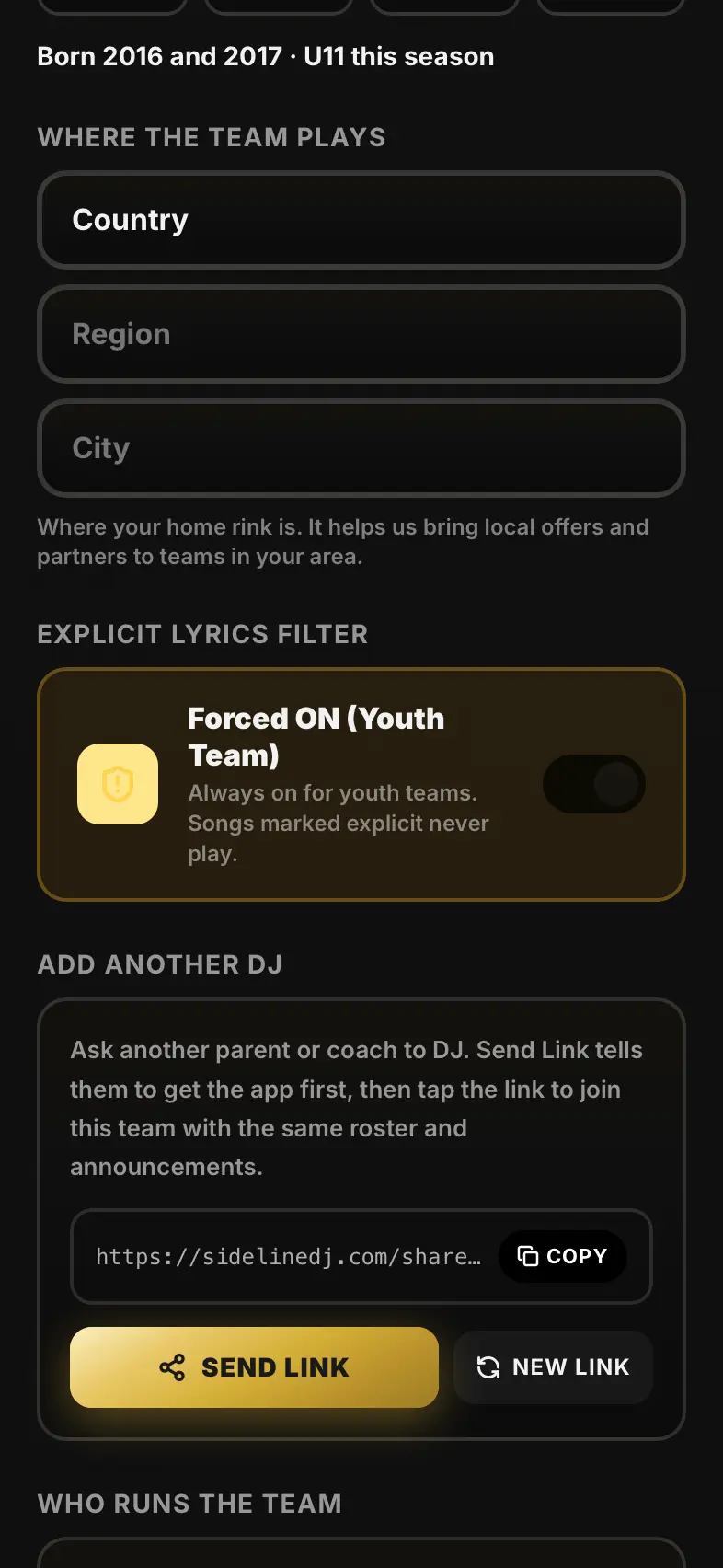
Clean songs for kids
Youth teams only ever hear clean songs: the filter is always on. The birth years also keep songs right for the age.
-
Set the sound at each rink
Sound Check before every game: every rink sounds different. The voice and music levels are kept for that rink next time.
That's everything. Questions? The Help tab in the app answers in plain words.